
Installing Sentinel LDK Vendor Suite with Sentinel LDK Launcher
Follow the instructions below to install Sentinel LDK Vendor Suite with a Sentinel LDK launcher for starting Sentinel LDK-EMS.
(Otherwise, if you want to install only a Sentinel LDK launcher for starting Sentinel LDK-EMS, go to Installing a Launcher for Sentinel LDK-EMS.)
To install Sentinel LDK Vendor Suite with a Sentinel LDK launcher:
1.Ensure that you do not have any Sentinel Vendor keys or Sentinel HL keys connected to your machine.
2.Go to Thales Customer Support Portal for Sentinel LDK.
3.In the Product Versions box, click 10.3 SDK.
4.Download Sentinel-LDK_SDK_Windows.zip and unzip the installation package to a temporary folder on your machine.
5.Browse to the Windows folder and double-click setup.exe.
6.Click Start the Sentinel LDK Setup. The Sentinel LDK Installation Wizard welcome window is displayed.
7.Click Next. You are asked to accept the license agreement.
8.Accept the agreement and click Next. The Installation Options screen is displayed:
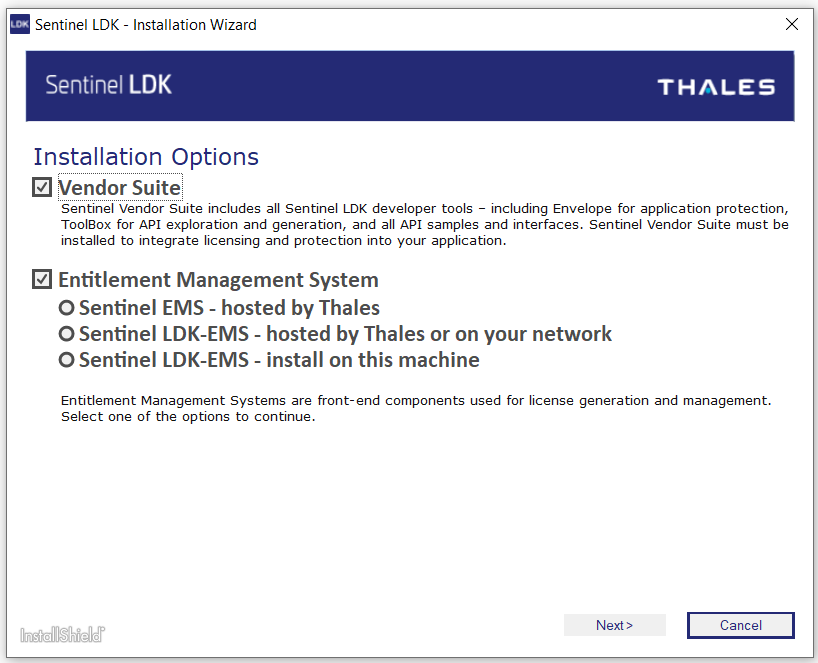
9. In the Installation Options screen, ensure that the following
•Vendor Suite
•Entitlement Management System
–Sentinel LDK-EMS – hosted by Thales or on your network
Click Next.
10.Follow the instructions to install Sentinel LDK Vendor Suite.
After the Installation Wizard has completed, Sentinel LDK Software Manager checks automatically to determine if a later version of any of the Sentinel LDK software is available. If a later version is found, a message similar to the following is displayed:
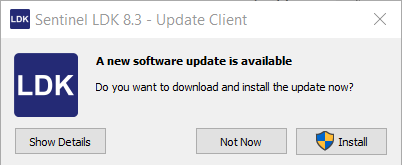
11.You can click Install to install the update. For more information regarding this message, see Installing Software Updates.
12.When the installation process is completed: Configure the Sentinel LDK launcher to start Sentinel LDK-EMS as described in Configuring Sentinel LDK to Work With Sentinel LDK-EMS.