
Downloads
A download is a software application that is delivered to you using Electronic Software Delivery (ESD). The ESD solution enables you to download software products over the Internet, instead of using physical media, such as CDs and DVDs. Sentinel EMS customer portal lets you manage all your downloads in one convenient location—the Downloads page.
The Downloads Page
In the navigation pane, click Downloads to open the Downloads page.

Viewing Download Information
For each download, there are several details available on the Downloads page. The following table explains these download details:
| Attribute | Description |
|---|---|
| Name | Name of the download. |
| Description | Additional information about the download. |
| Release Date |
Release date of the download. |
| Products | The list of products that are associated with the download. A Show All link is available when multiple products are associated with a download. Clicking the Show All link expands the list to display all associated products. |
|
|
|
| Name | Name of the product associated with the download. |
| Actions |
Actions that can be performed for the associated product: >Download: This action button allows you to download the file corresponding to the listed product. >Copy Link: This action copies the URL of the download file to the clipboard. |
|
Associated Downloads tab: Other download files associated with the current download. Examples can be an End User License Agreement (EULA) or a ReadMe file for an installer.
|
|
| Name | Name of the associated download. |
| Actions |
Actions that can be performed on the associated download: >Download: This action button allows you to download the associated download file. >Copy Link: This action copies the URL of the download file to the clipboard. |
Download Status
The status for a download can be:
>Disabled: Disabled downloads are visible but cannot be downloaded from the customer portal. The Download button and the Copy Link option are not available for a disabled download.
>Enabled: Downloads are available with their products on the customer portal. The Download button and the Copy Link option are available for enabled downloads.
Search Parameters for Downloads
You can use the search bar to filter the list of downloads based on the following search parameters:
>AID: Activation ID of an activated product associated with a download.
>Associated Download Name: Name of an associated download.
>Description: Description of a download.
>EID: Entitlement ID of an entitlement that contains a product associated with a download.
>Name: Name of a download.
>Product Name: Name of a product associated with a download.
For information on how to search, see Searching for an Entity.
Actions for Downloads
The Actions column provides additional operations that you can perform for a record in the grid on this page. Some or all of the following options may be available.
| Action | Description | |
|---|---|---|
|
Download the file defined with the download definition. If more than one product is associated with a download, then the Download button appears corresponding to the product in the expanded list. For information on the steps to download a file, see Downloading a File. | |
|
Copy the URL for the download file to the clipboard. For information on the steps to copy a download URL, see Copying a Download Link. |
Downloading a File
To download files:
1.From the navigation pane, select Downloads to view the Downloads page.
2.Click the Download button to download the linked download file.
For multiple products, the Download button is located next to the product name in the expanded Associated Products list. If only a single product is associated with a download file, then the Download button is located in the record for the download.
Copying a Download Link
To copy a download link:
1.From the navigation pane, select Downloads to view the Downloads page.
2.In the Actions column, click  (More Actions), and then click Copy Link to copy the URL of the download file to the clipboard.
Configuring the Columns to Display
NOTE Relevant only for vendor administrators who log in to the Sentinel EMS customer portal to perform configuration-related activities.
You can show or hide, and reorder the entity attributes that you want to display as columns on the page, and select the default grid column sorting as needed.
You can configure the column display based on the selected customer login type.
To configure the grid data for an entity:
1.Navigate to the Downloads page.
2.Click the Configure Columns tool located next to the Actions column. The columns that can be configured for the entity are displayed.
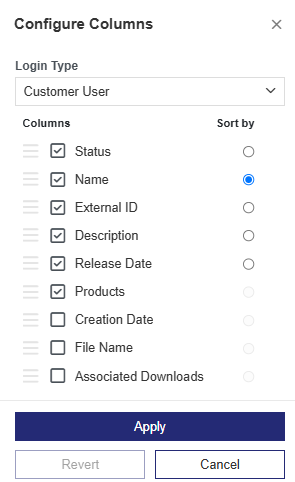
The Columns list shows all configurable entity columns. The selected checkboxes identify the columns that are currently displayed for the entity.
3.Select a login type from the Login Type list. The available options are:
•EID: Log in using your entitlement ID (EID).
•PKID: Log in using your product key ID (PKID).
•Customer User (default): Log in using your customer user credentials.
•Customer Admin: Log in using your customer administrator credentials.
•Channel Partner User: Log in using your channel partner user credentials.
•Vendor Admin: Log in using your vendor administrator credentials.
4.Select the checkboxes for the columns to display. Clear the checkboxes for the columns that you want to remove from the display.
5.Under Sort by, select the radio button next to an attribute to sort the grid by that column.
6.To reorder the columns, drag and drop the relevant columns to the required locations.
7.Click Apply to save the changes. You must make at least one change to enable the Apply button. This saves the changes for all login types in a single action.
8.(Optional)The Revert button is enabled when any configuration option differs from its default setting. Click Revert to reset the column configuration to the default settings. Reverting discards all previous customizations, including changes made in earlier sessions.
9.(Optional) Click Cancel to close the page without saving your changes.