
User Associations
NOTE Relevant only for administrator users.
As an administrator user of a customer, you might need to associate users with specific entities—products
The User Associations Page
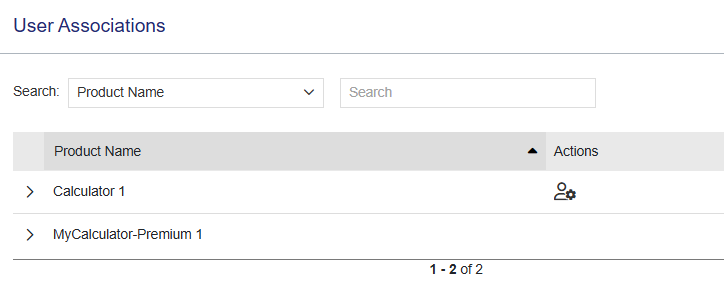
In the navigation pane, click User Associations to open the User Associations page. The User Associations page displays a list of all products belonging to a customer. When you expand a product and its sub-tabs, if any, you can view the users associated with the relevant entity. You can also manage user associations, as described in Managing User Associations.
Viewing Association Details
The following tables explain the details available on the User Associations page. Expand the relevant product to view the tabs described in this section.
| Attributes | Description |
|---|---|
| Product Name |
Name of the product available for the customer to which the logged-in administrator user belongs. |
Associated Users by Product Tab and Associated Users Tab
These tabs list the users that are associated with the product. Expand a row to view the list of users that are associated with that product. The Associated Users tab is displayed only when the

| Attributes | Description |
|---|---|
| User ID | Unique identifier of the user associated with the product. |
| Email address of the user associated with the product. | |
| Name | Name of the user associated with the product. |
Associated Users by Activation Tab
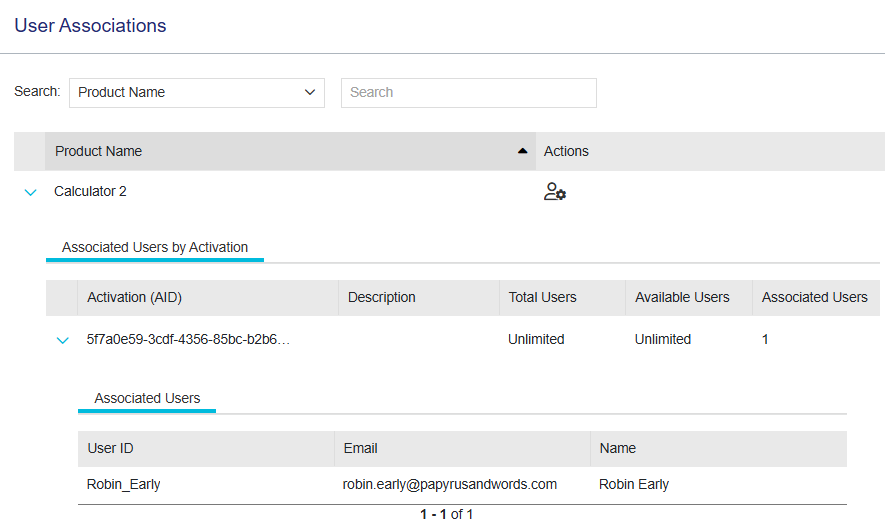
This tab displays aggregated data for each activation. Expand a row to view the list of users that are associated with that activation. The following example shows users that are associated with an activation:
| Attributes | Description |
|---|---|
| Activation | Unique identifier of the activation with which users are associated. |
|
A box in which you can add a description of the activation. You can use this value to view and manage user associations. To view the editing options, point to the box. Then: >Click the >Click the >Click the |
|
| Total Users |
The total number of users that can be associated with the activation. |
| Available Users | The total number of possible users that are not yet associated with the activation. |
| Associated Users | The total number of users that are currently associated with the activation. |
 Edit button and enter up to 200 characters.
  Save button to save the description.
  Clear button to remove the text from the box during an editing session.
Associated Users by Key Tab
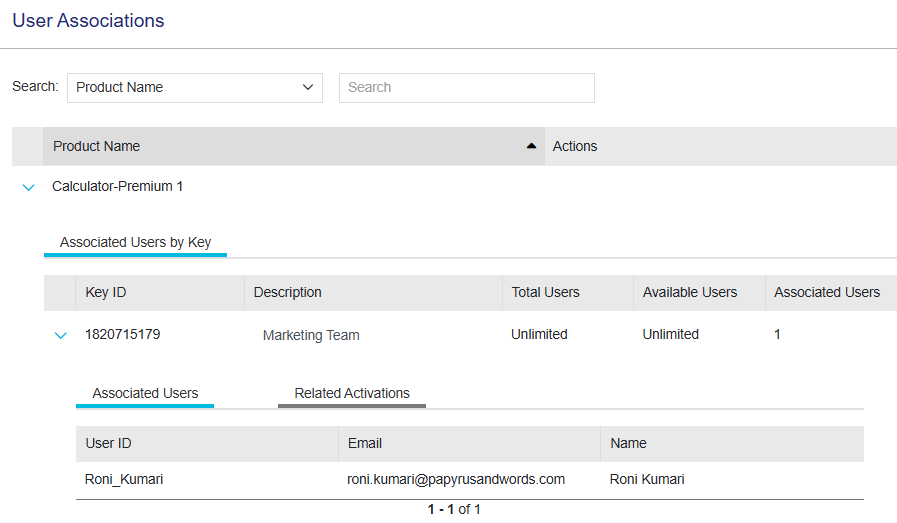
This tab displays aggregated data for each Sentinel key. Expand a row to view the list of users that are associated with that key. The following example shows users that are associated with a Sentinel key.
| Attributes | Description |
|---|---|
| Key ID | Unique identifier of the Sentinel key with which users are associated. |
|
A box in which you can add a description of the Sentinel key. You can use this value to view and manage user associations. To view the editing options, point to the box. Then: >Click the >Click the >Click the |
|
| Total Users |
The total number of users that can be associated with the Sentinel key. |
| Available Users | The total number of possible users that are not yet associated with the Sentinel key. |
| Associated Users | The total number of users that are currently associated with the Sentinel key. |
Related Activations Tab
This tab is displayed only when the Associated Users by Key tab is expanded. The following example shows an activation that is associated with a Sentinel key.
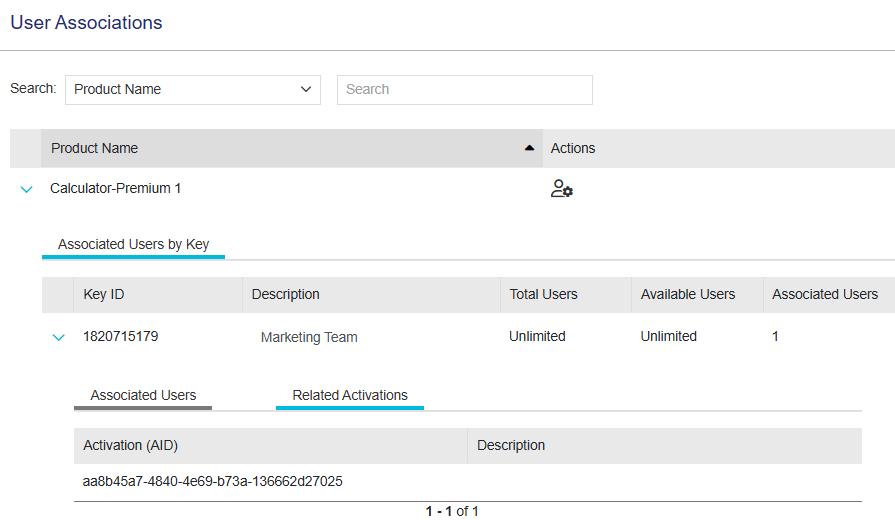
| Attributes | Description |
|---|---|
| Activation ID | Unique identifier of the activation performed on the Sentinel key. |
| Description | A description of the activation. |
Actions for User Associations
The following table lists the actions available for user associations:
| Action | Description | |
|---|---|---|
|
Manage User Association |
Manage users associated with the product. You can associate customer's users who will be using the product, and also disassociate users if required. For more information, see Managing User Associations. |
Managing User Associations
You can manage the association between users and products
To manage user associations:
1.From the navigation pane, click User Associations to open the User Associations page.
2.Locate the relevant product.
3.If you are associating users with
a.Click the
b.(Optional) In the Description field, add a description for the
c.If more than one
–If you created a description, make a note of the description.
–Point to the relevant Copy to Clipboard button.
d.(Optional) View the values in the grid. During user association, you can associate up to the maximum number of Available Users listed for that entity. For details, see
4.In the Actions column for the relevant product, click Manage User Association. The Manage User Association page opens showing the list of users available for the customer.
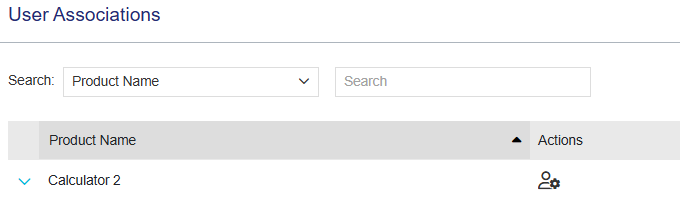
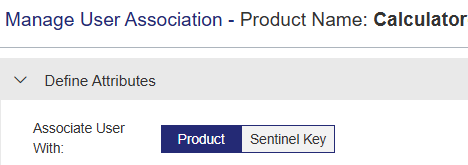
5.If the Associate User With toggle button is displayed, click the relevant entity. For example, you might see both
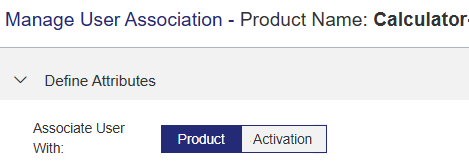
6.If you clicked
•Enter the description that you saved earlier. As you enter the description, the search mechanism automatically identifies the relevant the
•Paste the
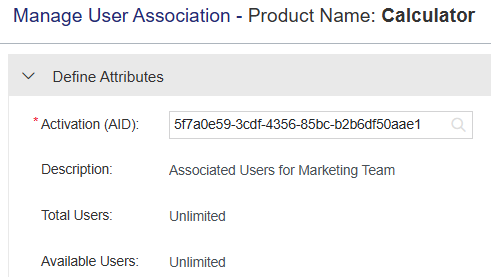
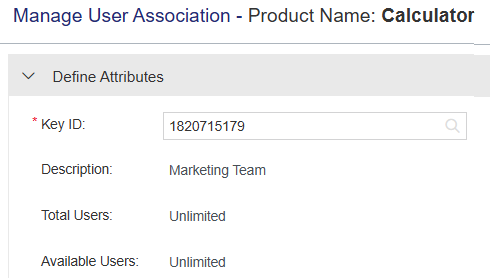
The Description, Total Users, and Available Users values are populated. For details on these fields, see
7.Do one of the following:
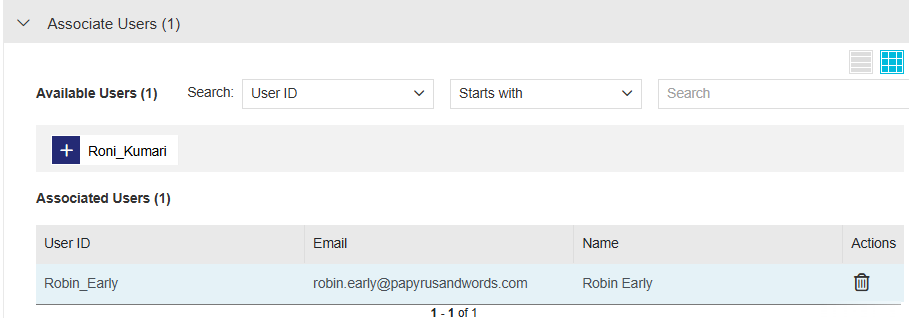
•To associate users with the entity: In the Available Users list, click the users that you want to associate. The specified users are moved to the Associated Users list. If a user limit is defined, you can add up to the maximum number of Total Users.
•To disassociate users from the entity: In the Associated Users list, scroll to the user that you want to disassociate and, in the Actions column, click  Delete. The user is moved back to the Available Users list. Repeat for each additional user.
8.Click Save.