Prerequisites
Before you start installing Sentinel Pulse
>Licenses and Roles Required for Administrators
Sentinel Pulse Order Emails
When you purchase Sentinel Pulse, you will receive the following two emails:
>Sentinel Order Email
The email with a subject line Thales Sentinel Order contains information about the license validity of Sentinel Pulse Data Platform and Sentinel Pulse
>Sentinel Pulse - Configuration Email
The email with a subject line Thales Sentinel Pulse - Configuration contains information essential for the installation of Sentinel Pulse. At the bottom of the email, you'll find a support portal link that directs you to the Sentinel Pulse app installation link.
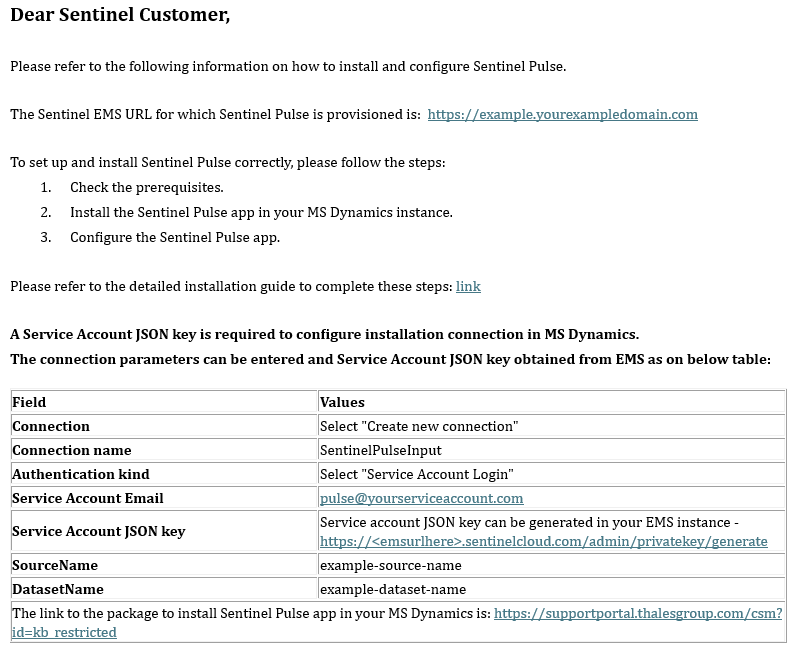
NOTE Remember to share this information with your
Licenses and Roles Required for Administrators
License:
An active Microsoft Outlook License included in plans such as Microsoft 365 Business Basic.
See Check User Outlook License to verify Outlook license availability.
NOTE If you do not currently have an Outlook license, you can procure one from Microsoft Dynamics.
Roles:
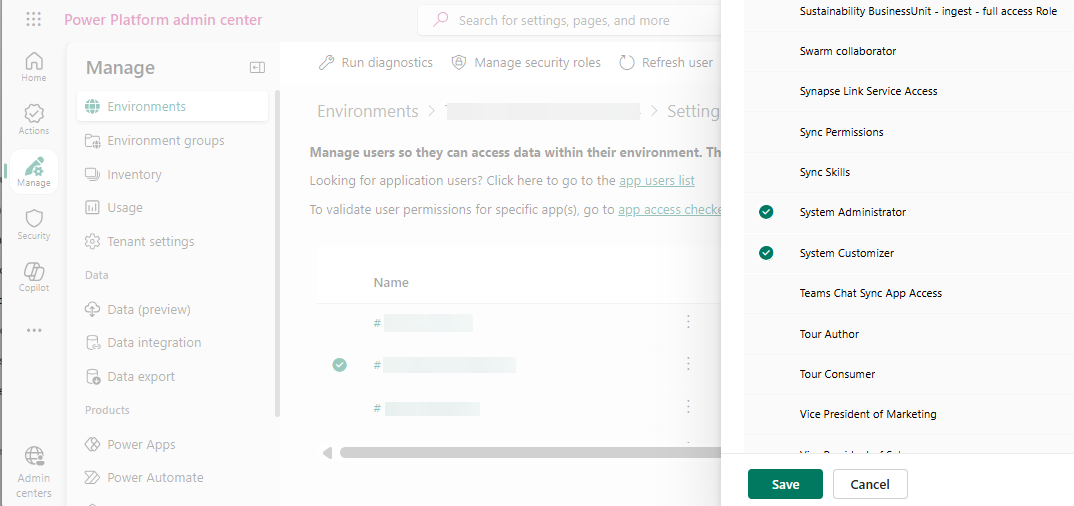
The administrator must be assigned both of the following roles in Microsoft Dynamics:
>System Administrator: Provides full control in Dynamics 365, including access to user management, customization, data access, and system settings.
>System Customizer: Enables users to customize entities, fields, forms, views, relationships, and other components in Dynamics 365.
 Learn How to Assign Roles for Administrators in Microsoft Dynamics
 and select Admin Center.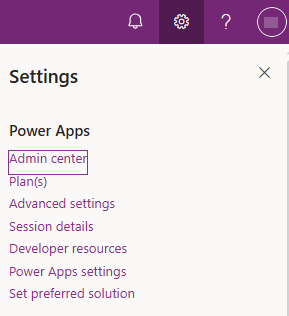
Outlook License Availability
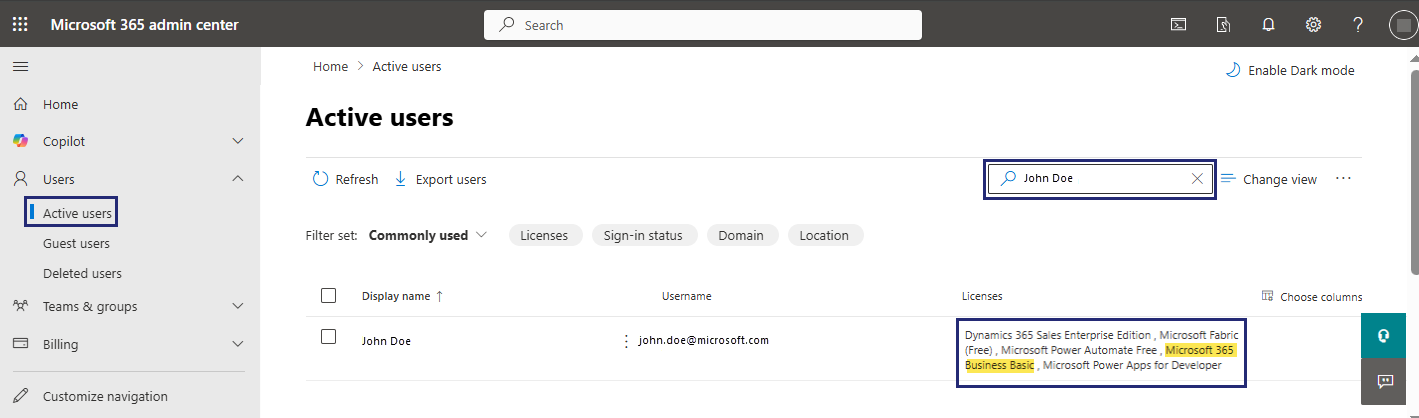
To verify your Outlook license:
7.Log in to https://admin.microsoft.com.
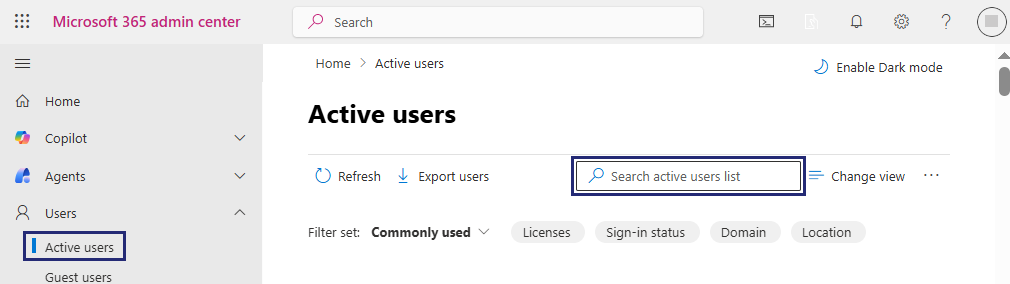
8.From the left navigation pane, select User > Active Users to view the Active Users page.
9. Search the name of the administrator user in the Search active users list box.
10.Under the Licenses column, verify that one of the following licenses is assigned and active, as these licenses include Outlook access:
•Exchange Online Plan 1
•Microsoft 365 Business Basic / Standard / Premium
•Microsoft 365 Enterprise plans