
Setting Up Admin Configurations
The Admin Configurations tab provides the ability to perform configurations of Sentinel Pulse. For example, changing the default Account Mapping criteria.
This section lists the steps to create and add the Admin Configurations tab to the navigation.
NOTE This section is relevant for both fresh and upgrade installations.
Creating the Admin Configurations Tab
NOTE Perform the following steps only after the Sentinel Pulse application installation is complete.
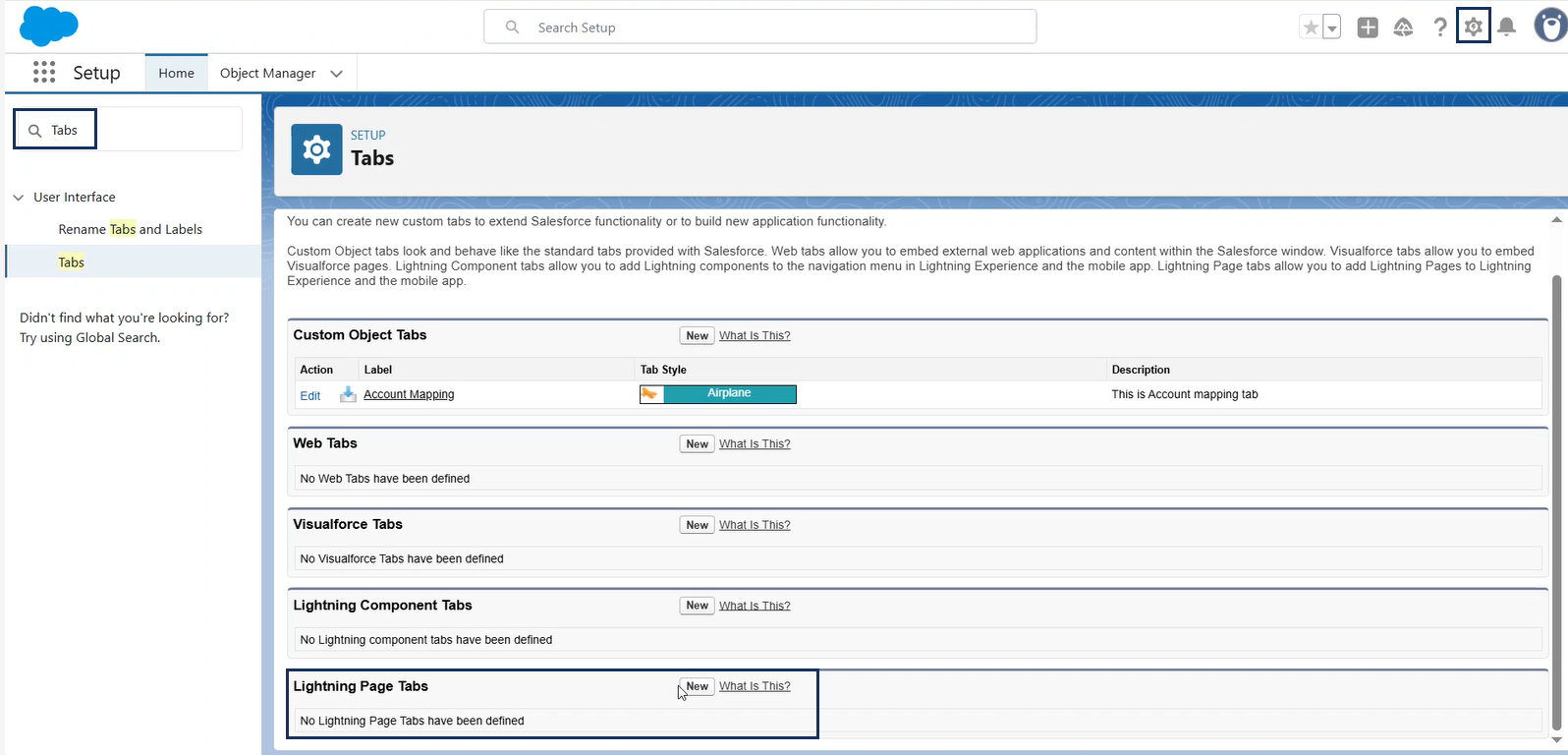
1.On the top-right of the Sentinel Pulse Home page, click the Setup button.
2.In the Setup page, under the Quick Find box, search for Tabs.
3.In the Tabs page, look for Lightning Page Tabs. Click New.
4.Under the Step 1. Enter the Details fields, enter the following values for the and click Next:
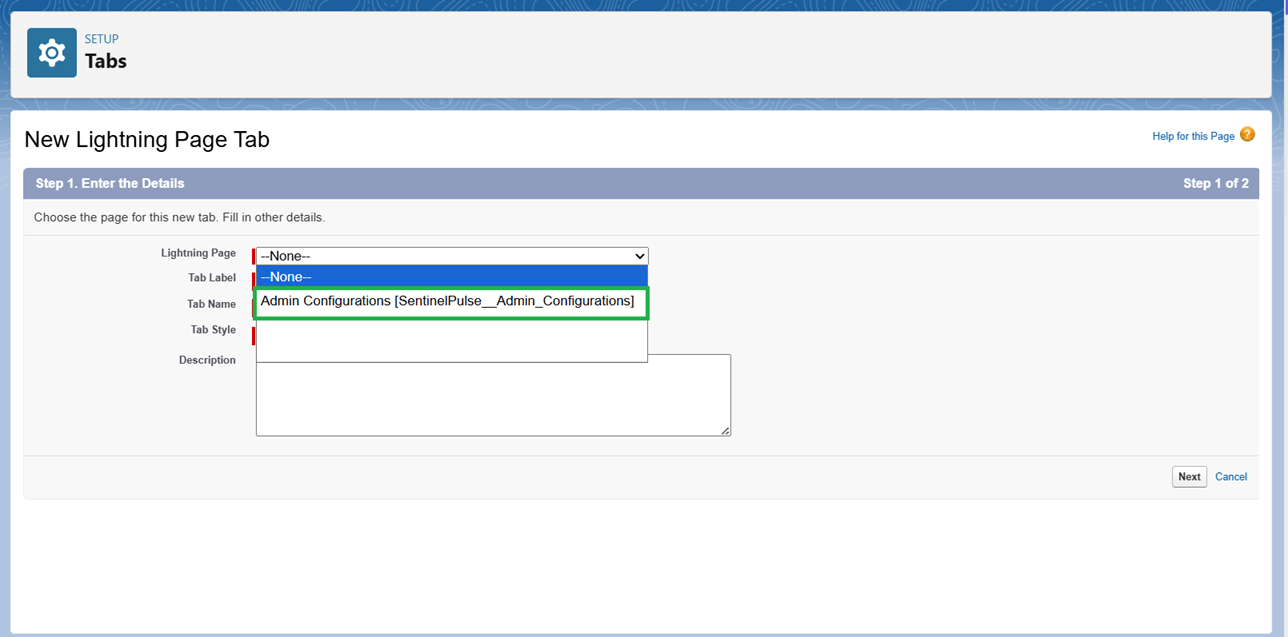
| Field | Value |
|---|---|
| Lightning Page | Admin Configurations [SentinelPulse_Admin_Configurations] |
| Tab Label |
Admin Configurations |
| Tab Name | SentinelPulse_Admin_Configurations |
| Tab Style |
Your choice. For example: Gears |
| Description |
Additional Sentinel Pulse configurations. |
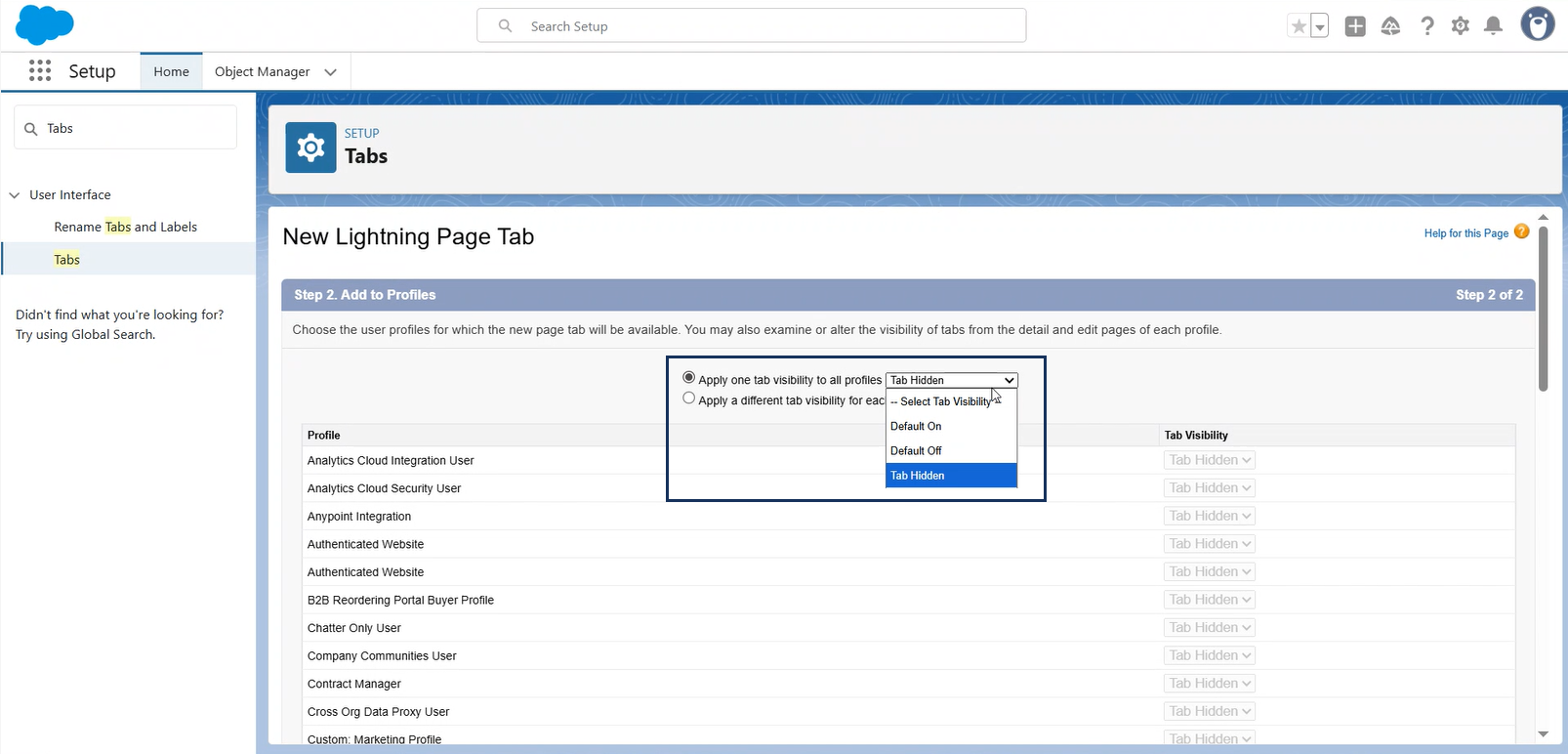
5.In Step 2. Add to Profiles, specify the following settings:
| Option | Value |
|---|---|
| Apply one tab visibility to all profiles | Tab Hidden |
| Apply a different tab visibility for each profile > System Administrator |
Default On |
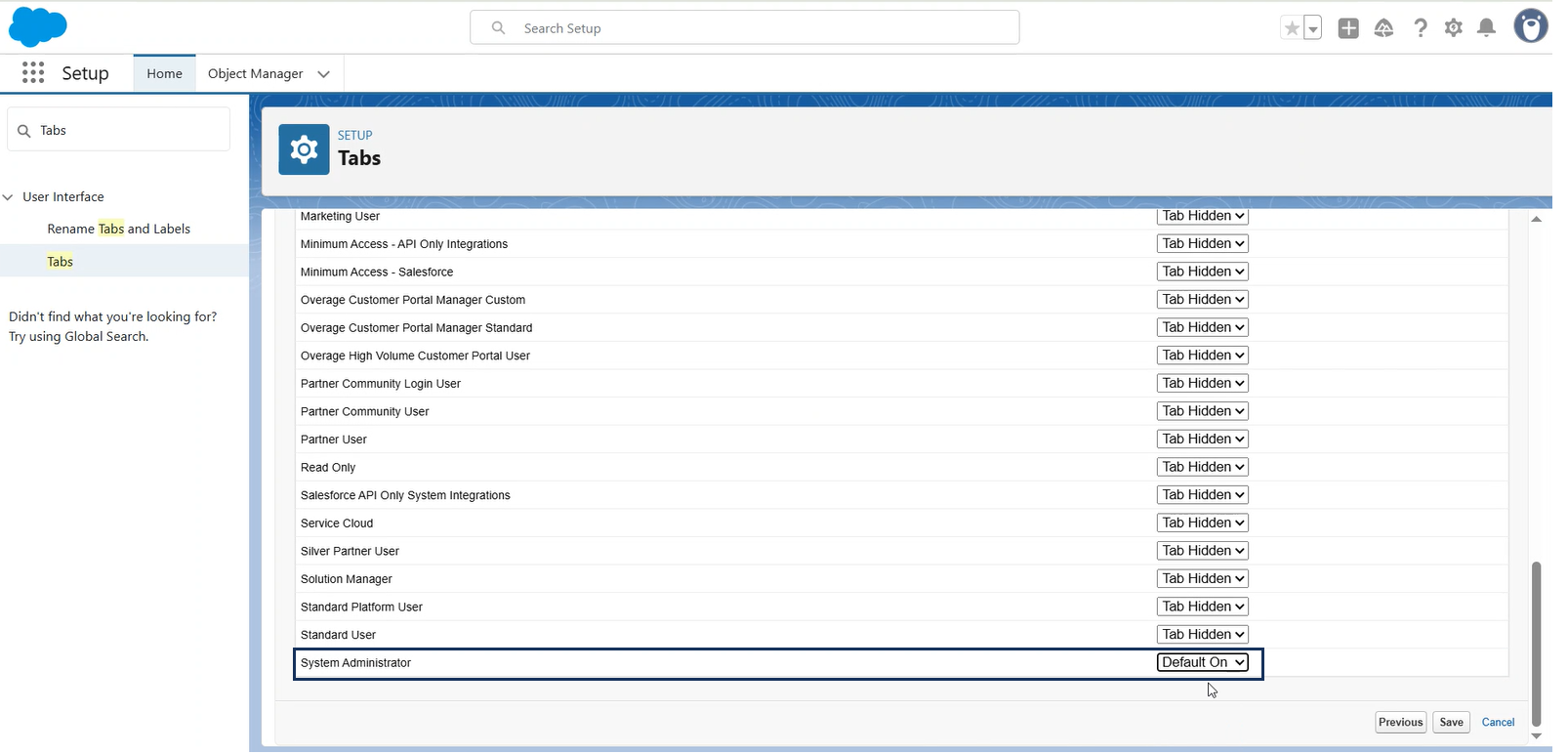
6.Click Save to create the Admin Configurations tab. Follow the next steps to add the tab alongside the Sentinel Pulse tabs.
Adding the Admin Configurations Tab
1.In the top-right corner, click Settings, and then select Setup.
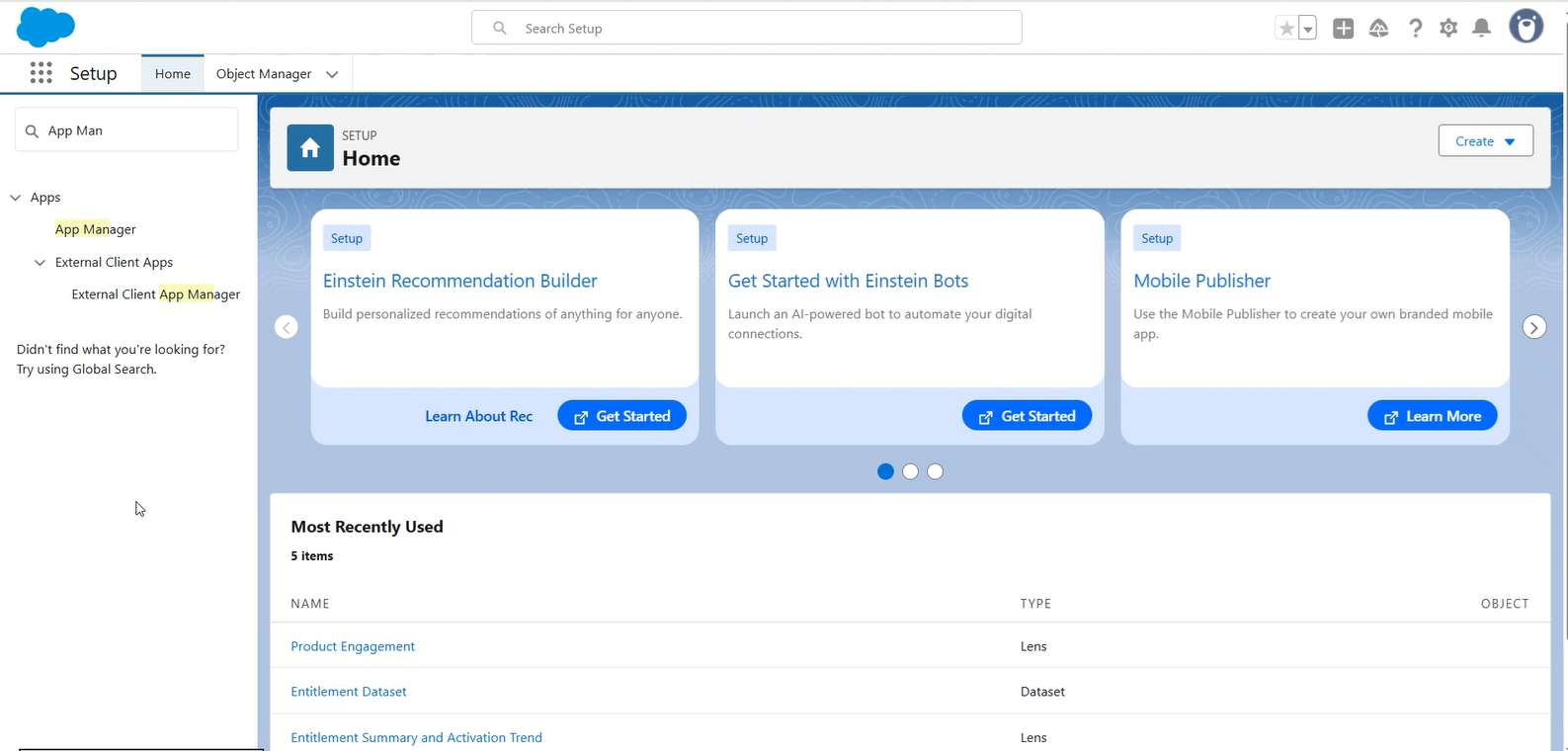
2.In the Setup page, under the Quick Find box, search for App Manager.
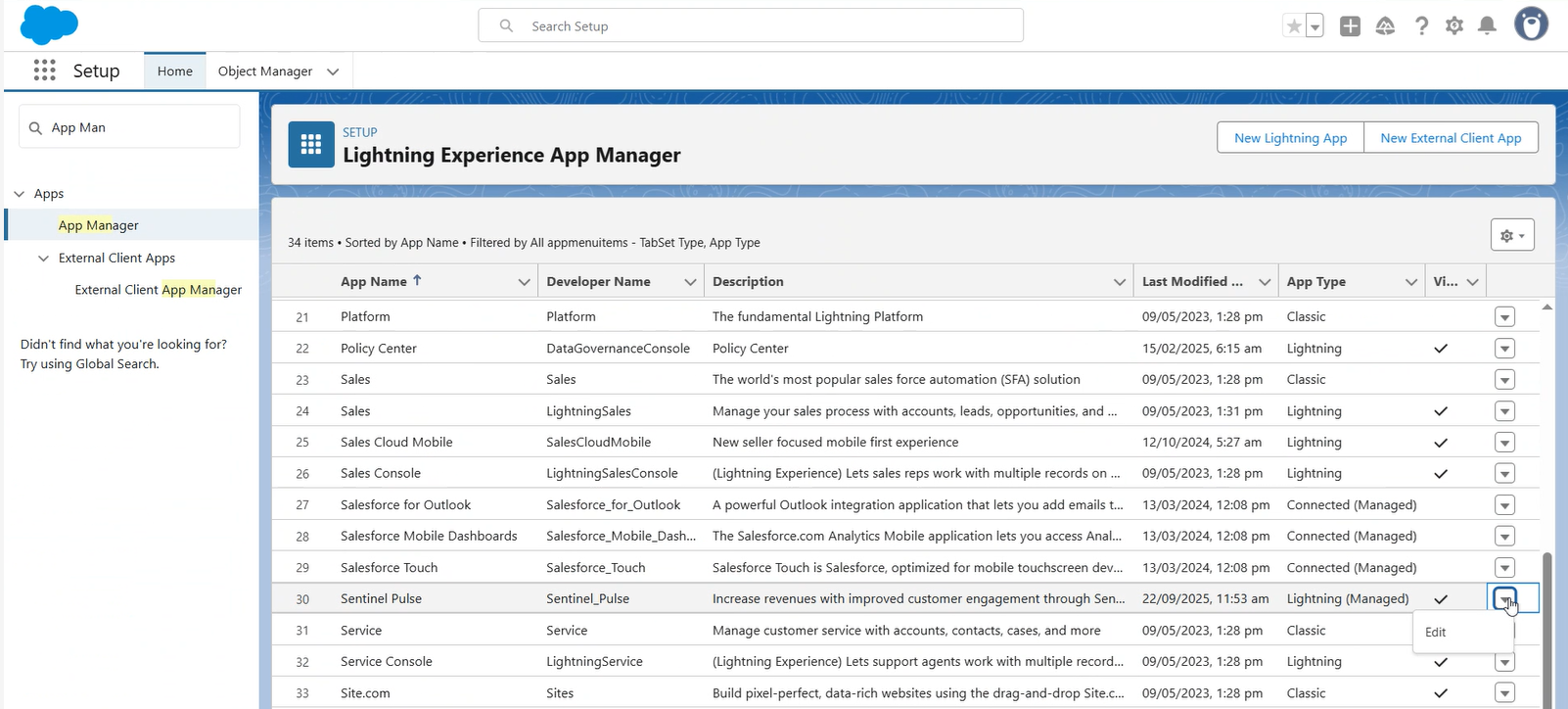
3.In the Lightning Experience App Manager, search for Sentinel Pulse. On the right, use the drop-down button to click Edit.
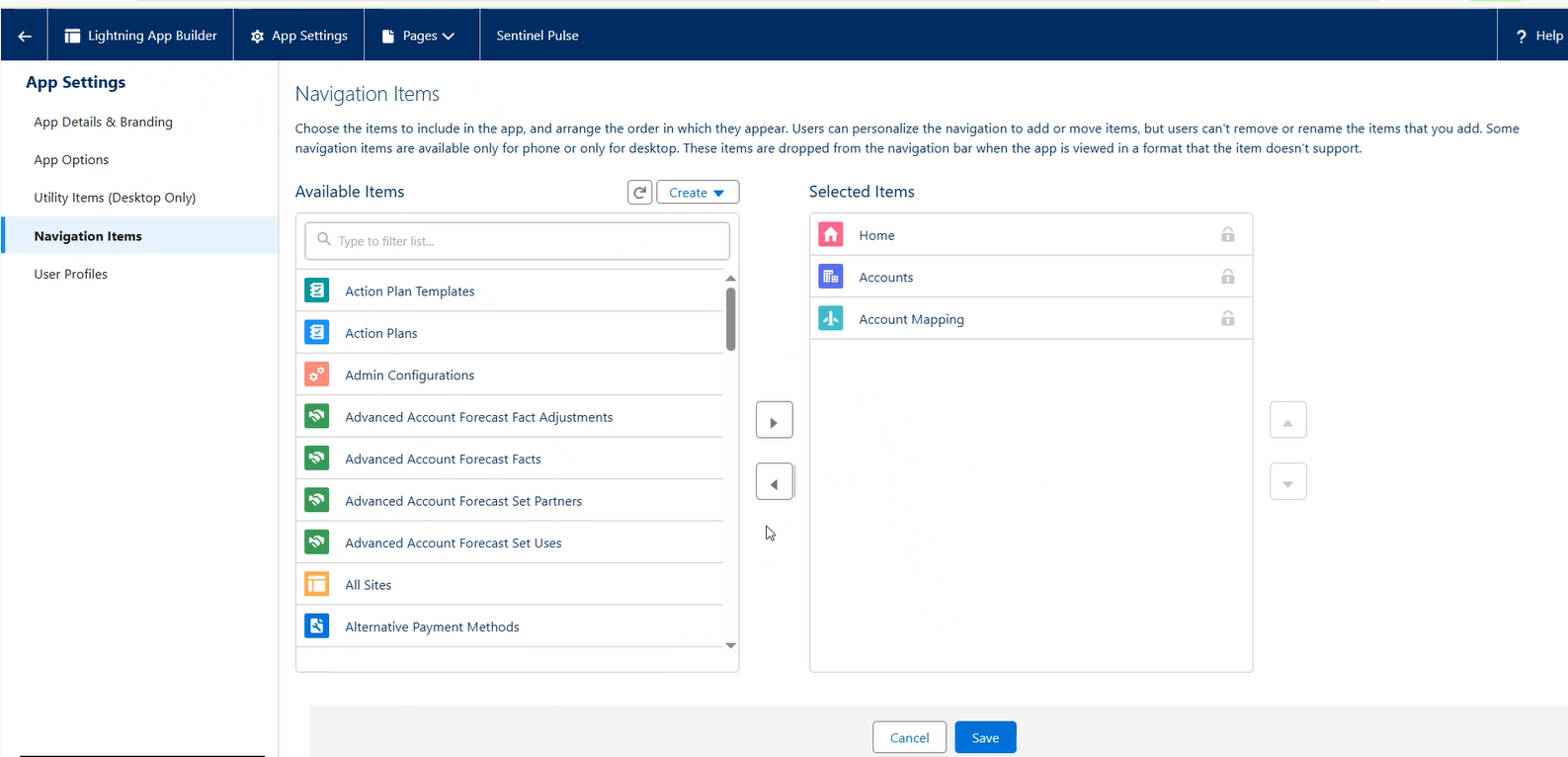
4.On the App Settings page, click Navigation Items.
5.Under Navigation Items, move Admin Configuration from Available Items to Selected Items.
6.Click Save.
7.Log out and log back in for the changes to take effect. The Admin Configuration tab is added in Sentinel Pulse.
Refer to Sentinel Pulse User Guide to learn more about using the Configure Account Mapping, available under the Admin Configuration tab.