Entitlement Summary and Activation Trend
The Entitlement Summary and Activation Trend dashboards are available on the Accounts page under the Sentinel tab.
In this section:
Viewing the Dashboards
To view these dashboards, click an account name on the Accounts page, or on the Product Engagement dashboard. The Sentinel tab opens on the Accounts page.
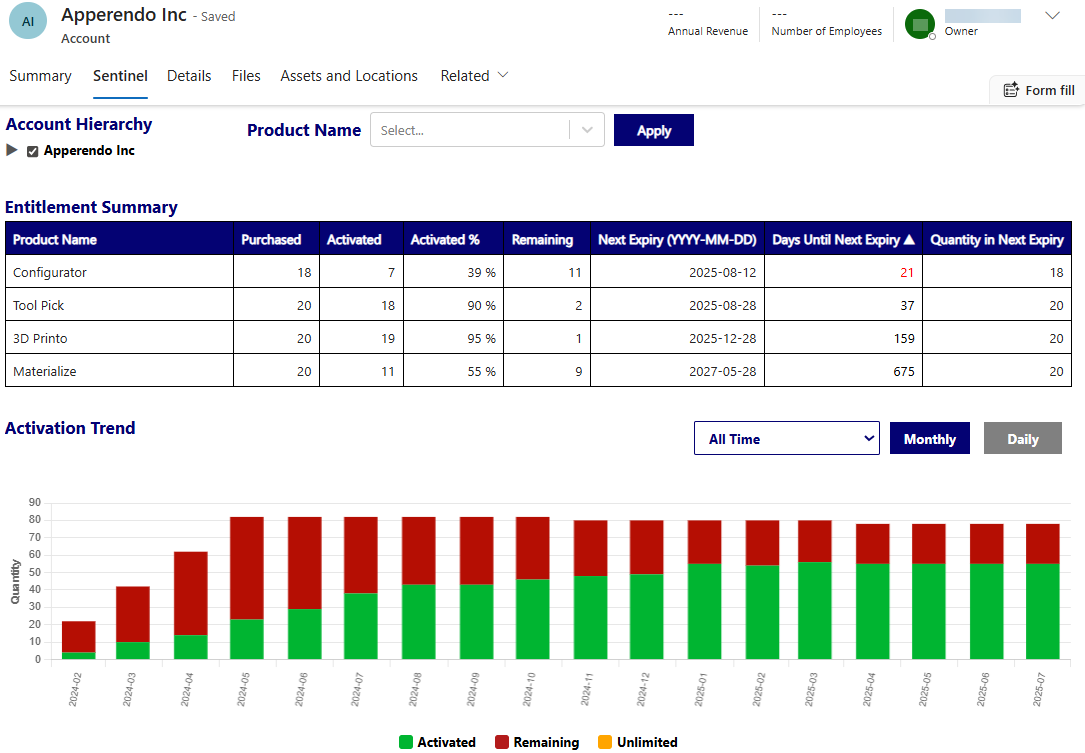
The Sentinel tab on the Accounts page includes the Entitlement Summary and Activation Trend dashboards. By default, details of the current account are shown in the dashboards.
Entitlement Summary
This dashboard provides an overview of the entitlement data for the account.
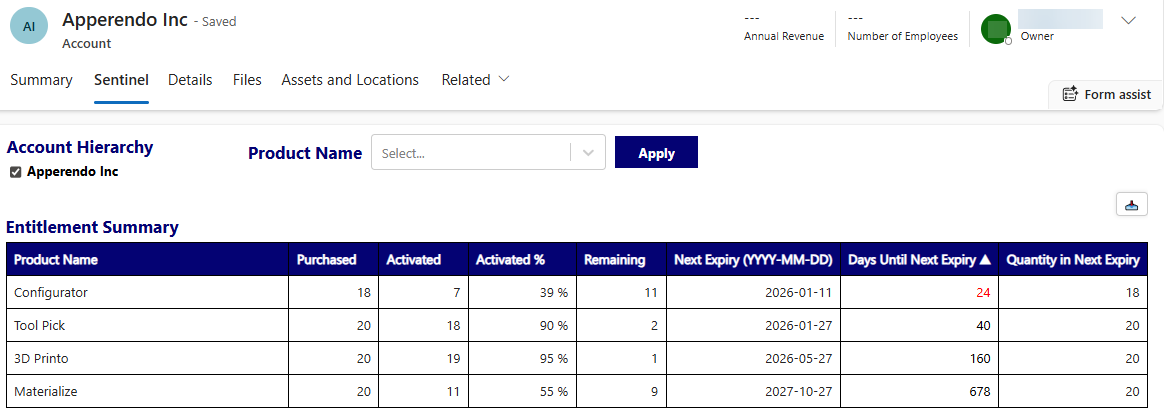
The following entitlement data points are available:
| Field | Description |
|---|---|
| Product Name |
The product name in Sentinel EMS purchased by the customer. |
| Purchased | The total purchased quantity of the product that has not expired. |
| Activated | The total activated quantity of the product that has not expired. |
| Activated % | The percentage of activation of the product that has not expired. |
| Remaining | The purchased quantity of the product that is not yet activated and not expired. |
| Next Expiry | Date of next expiry, fixed in the YYYY-MM-DD format. |
| Days until Next Expiry | Days until next expiry of the product. By default, the dashboard is sorted in ascending order of this field and highlighted in red at the notification point. |
| Quantity in Next Expiry | The quantity of the product that expires in the next expiry. |
Activation Trend
This visualized dashboard gives a trend timeline of the peak purchased, peak activated and remaining quantities.
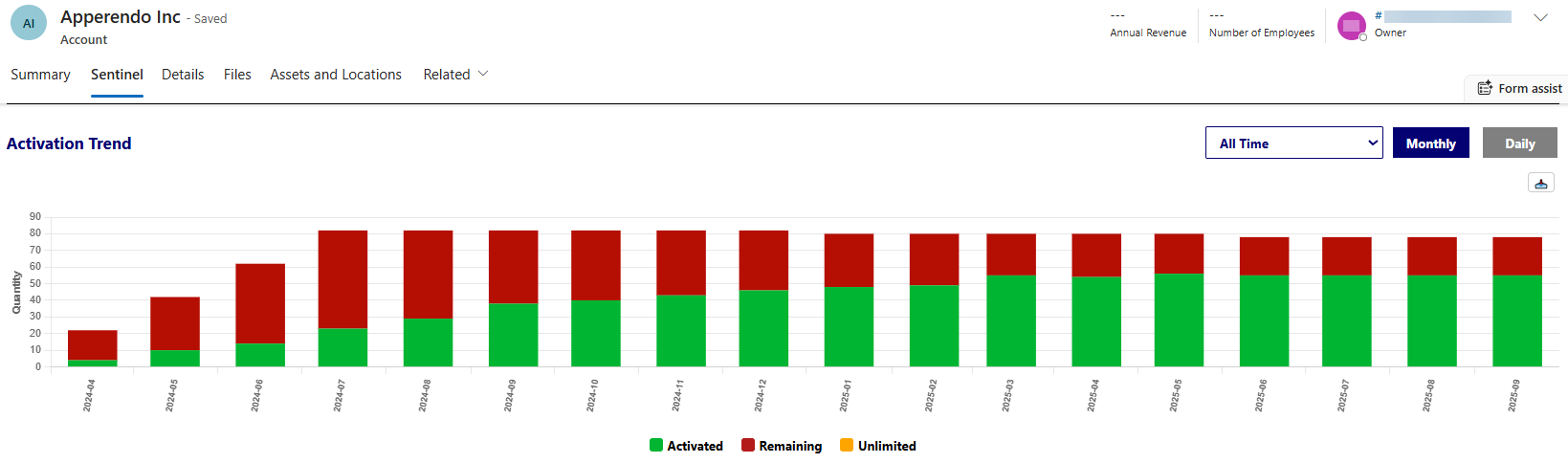
For instance, if you select the Monthly view, the dashboard displays the maximum purchased quantity and activations for each month, as well as the remaining activations. Similarly, in the Daily view, the dashboard will show the quantities on a daily basis.
By default, the timeline is Monthly and starts from the first purchase of the product(s). You can filter the date range for a specific timeline, or product name and switch to the daily view. The dashboard shows the data until the current period.
NOTE
>The dashboard includes only entitlements and line items from Sentinel EMS that are in the Enabled (Completed) state. It does not include entitlements and line items in Draft, Disabled, or Closed states.
>You can download the Entitlement Summary and Activation Trend dashboards data using Download to Excel button available at the top-right corner of each dashboard.
Page Filters
By default, the two dashboards provide an overview of all purchases and their activation trend history of the account. You can filter this information further using the Account Hierarchy Filter and Product Name Filter.
Account Hierarchy Filter
Microsoft Dynamics account hierarchy  feature illustrates the relationship between a parent account and its subsidiaries (child accounts) in a hierarchical structure.
The Account Hierarchy filter allows users to view and select children of the current account to refresh the Entitlement Summary and Activation Trend dashboards. This enables them to see an aggregated result of product purchases and activations from the selected accounts in a hierarchy. All the data points such as the number of purchased quantities, activated quantities and remaining quantities are aggregated accordingly.
NOTE
>The account permissions set up in Microsoft Dynamics apply and the Sales and Operations users can only access the account data they are authorized to view.
>Only the child accounts of the given parent account are available for selection.
 Account Hierarchy Filter Example Scenarios
| Scenario | Filter Applied | |
|---|---|---|
| Only the parent account is selected | The dashboards display data exclusively for the parent account, excluding any information from the child accounts. | 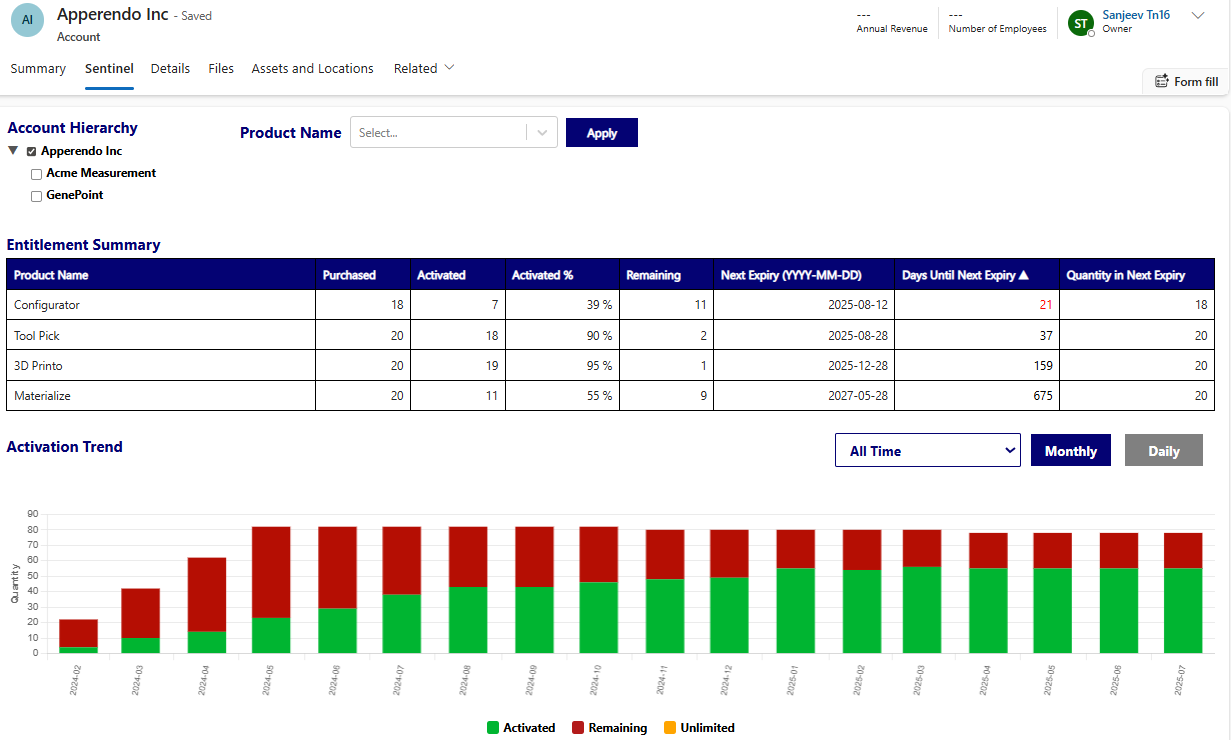
|
| Only specific child accounts are selected | The dashboards display data only for the selected child accounts, with no information from the parent account included. | 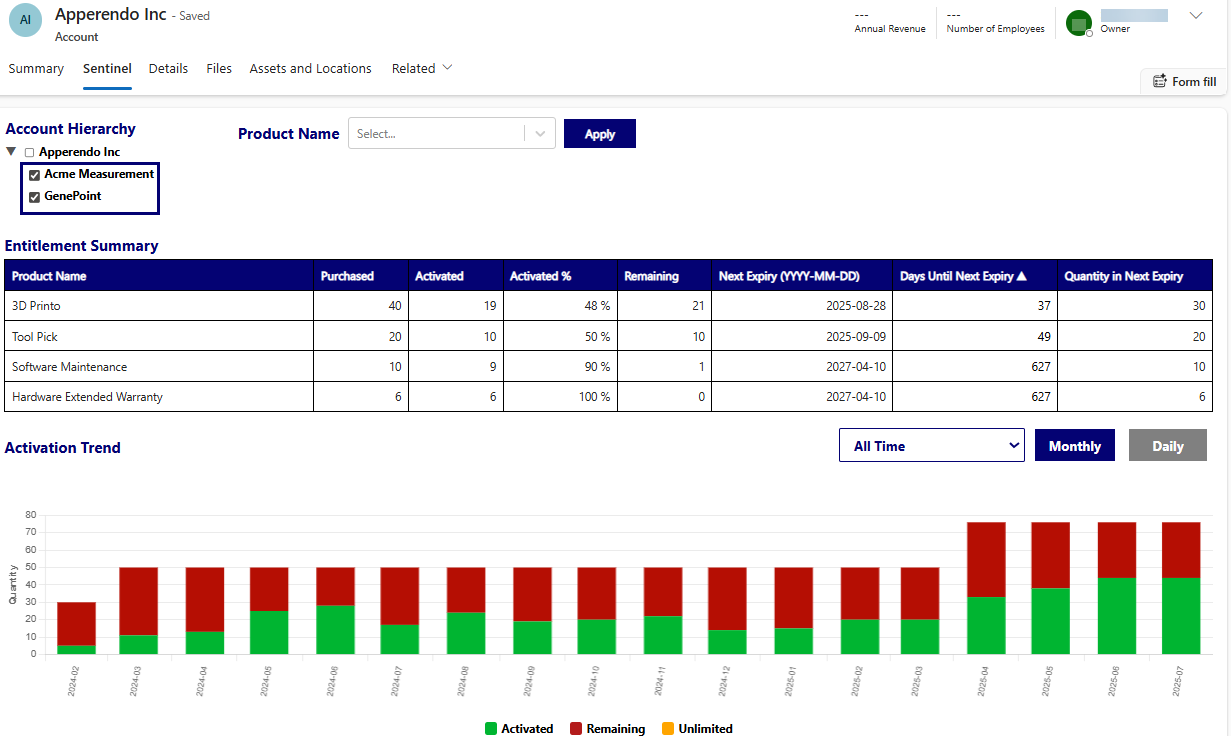
|
| Both the parent and child accounts are selected | The dashboards display data exclusively for the selected parent and child accounts, excluding any other accounts. | 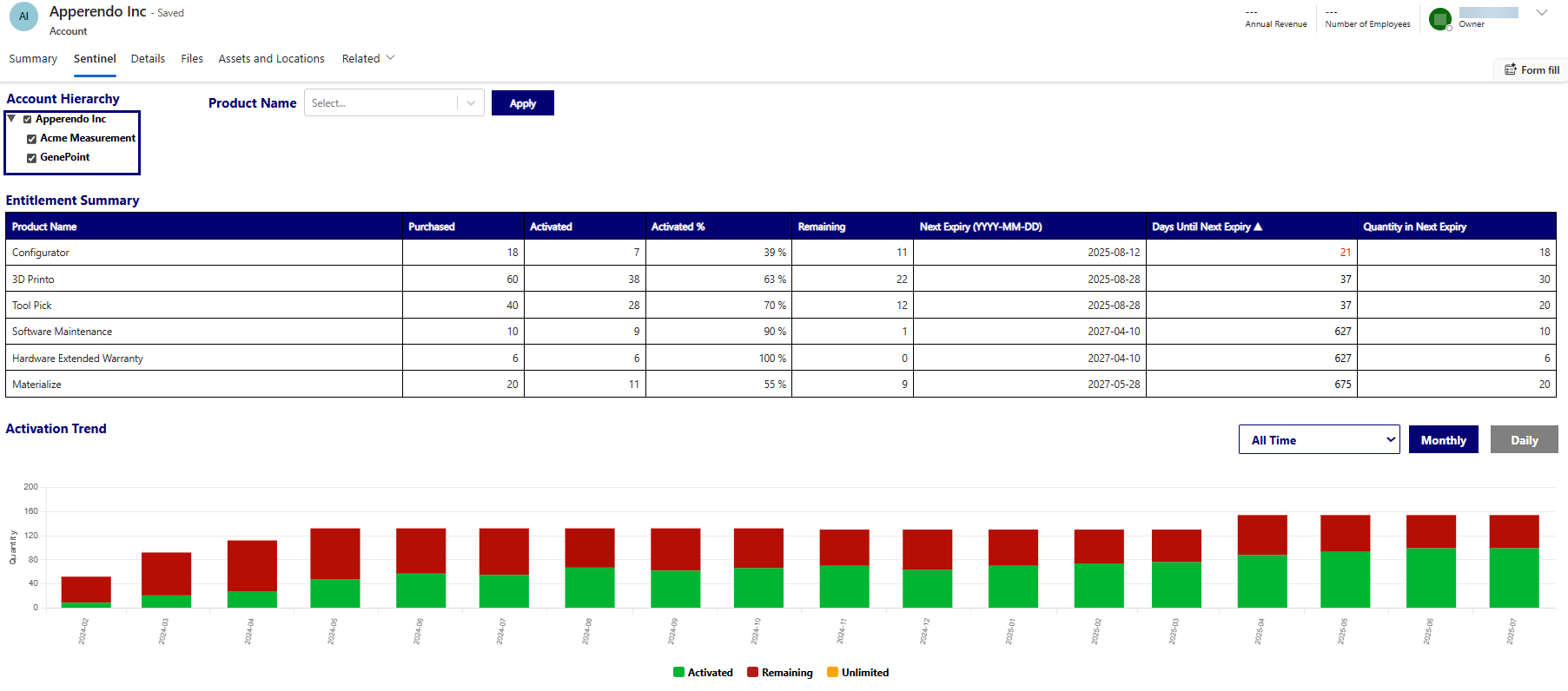
|
Dashboards Aggregation Rules for the Account Hierarchy Filter
The aggregation rules which apply to dashboards based on the Account Hierarchy filter are:
| Entitlement Data Fields | Aggregation Rule |
|---|---|
| Purchased |
Aggregated using data from accounts selected in the Account Hierarchy filter. |
| Activated | |
| Activated % | |
| Remaining Fields | |
| Next Expiry | Next expiry date amongst all purchases of the product by accounts selected in the Account Hierarchy filter. |
| Days Until Next Expiry |
The number of days left for the next expiry of the product. The dashboard is sorted in ascending order of this field. |
| Quantity in Next Expiry |
Quantity that expires in the next expiry of the product. |
Product Name Filter
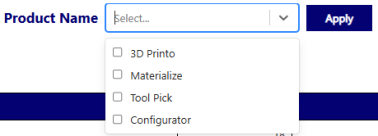
By default, the dashboards display data of all products of the current account. The Page filters section contains the Account Hierarchy Filter and Product Name Filter, which can be used to refresh the view for certain products or other accounts in the hierarchy.