
Managing Your Account
|
New to the Customer Portal?
|
Use the My Account page to manage your profile details, change your login password, and manage active login sessions in the customer portal. This page consists of the following sections:
>Profile—Helps you view and update your basic account details, such as name and email address.
>Password—Helps you update your login password.
>Active Sessions—Helps you view active login sessions. You can also log out of other active sessions across browsers and devices.
To access your account settings:
1.Log in to the customer portal.
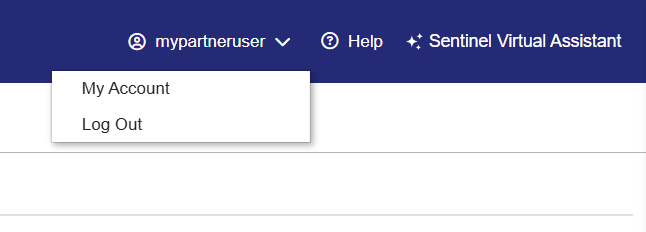
2.Click the profile icon at the top right of the browser, and then select My Account. The My Account page opens.
Profile Management
NOTE If your organization uses their own identity provider, you cannot edit your profile details in Sentinel EMS. Your profile is managed by your identity provider.
The Profile tab displays basic identification and contact details for the logged-in user account.
 For Users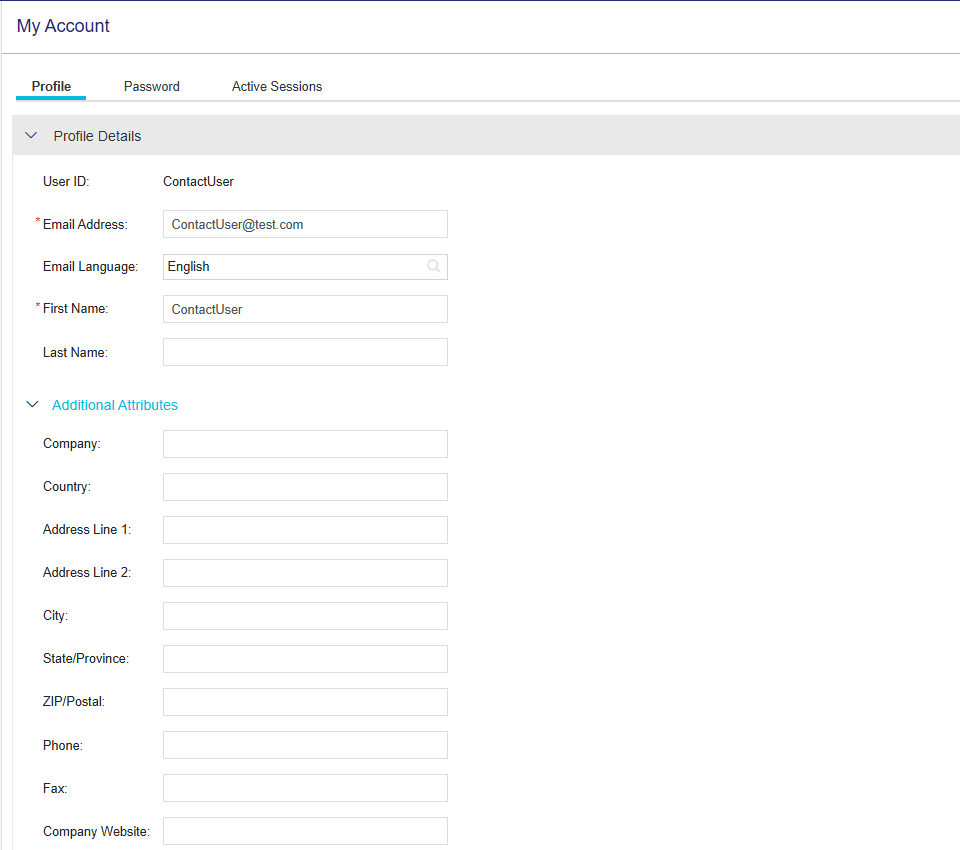
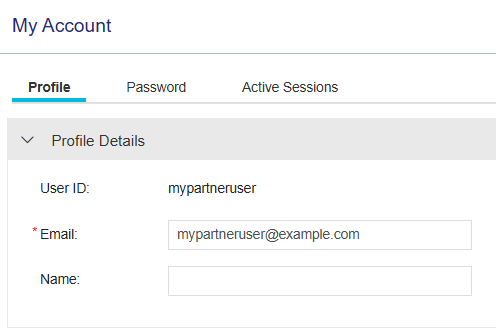
To update your profile details:
1.On the My Account page, open the Profile tab.
2.Modify your profile details as required.
3.Click Save. The updated first name and last name (or name for Channel Partner users) will be visible in the upper-right corner of the page.
Password Management
NOTE If you authenticate using your organization's identity provider, you cannot view the Password tab in Sentinel EMS. Your password is managed by your identity provider.
The Password tab enables you to change your login password.
This tab displays your Current Password represented by a row of asterisks. The number of asterisks shown in the field is a placeholder and does not reflect the actual character length of your password.
To change your password:
1.On the My Account page, open the Password tab.
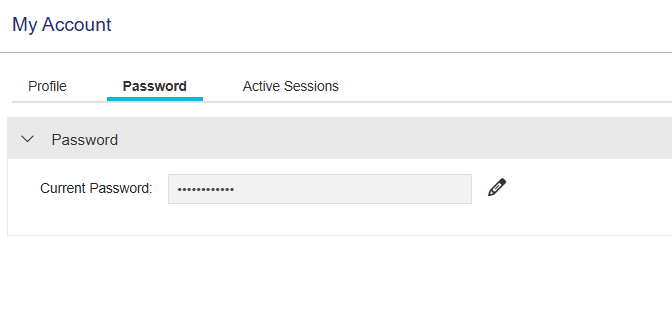
2.Click the  Edit icon next to the Current Password field. The Change Password dialog box opens.
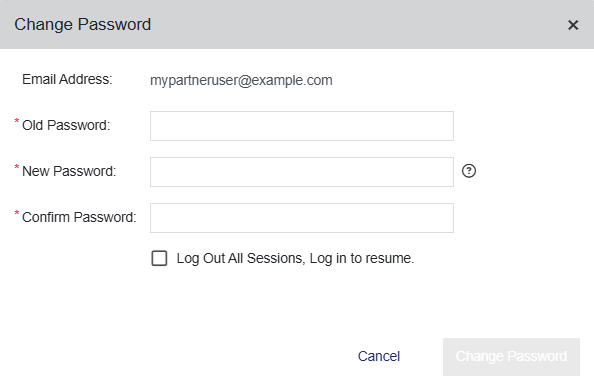
3.In the Change Password dialog box, fill in the fields described in the table below:
| Field | Description | Required/Optional | Valid Values |
|---|---|---|---|
| Email Address |
Displays the email address associated with your account. |
Required |
Read-Only |
| Old Password |
The current password for your account. |
Required |
The existing password associated with your account. |
| New Password |
The new password for your account. |
Required |
>8 to 30 characters >At least one lowercase character (a-z) >At least one uppercase character (A-Z) >At least one number (0-9) or special character (! @ # $ % ^ & * ( ) _ - + = , .) |
| Confirm Password |
Re-enter your new password to confirm it. |
Required |
Must match the value in the New Password field. |
4.(Optional) Select the Log Out All Sessions, Log in to resume checkbox to terminate all active sessions, including the current session associated with the account.
5.Click Change Password.
>If the Log Out All Sessions, Log in to resume checkbox is selected: All sessions, including your current session, are terminated and you must log in again using the new password to resume using the portal.
>If the Log Out All Sessions, Log in to resume checkbox is cleared: Only your current session is terminated immediately and you must log in again using the new password to resume using the portal.
Active Session Management
Sentinel EMS allows multiple concurrent active sessions for the same user account across different browsers and devices. The Active Sessions tab lists all active sessions and provides options to manage and terminate them.
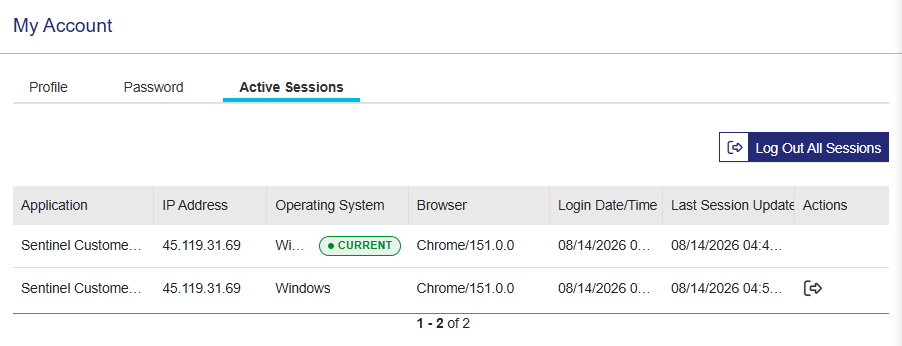
The active sessions grid displays the following details for each login session:
| Column | Description | ||
|---|---|---|---|
| Application |
The specific Sentinel EMS portal or application used for the session (for example, Vendor Portal, Customer Portal, or an external application). |
||
| IP Address |
The IP address of the device from which the session was established. |
||
| Operating System |
The operating system of the device used for the session. |
||
| Browser |
The web browser used for the session. |
||
| Login Date/Time |
The exact date and time the session was started. |
||
| Last Session Update |
The time of the most recent user activity within the session. |
||
| Actions |
Actions that can be performed on an active session:
|
To view and terminate active sessions:
1.On the My Account page, select the Active Sessions tab to view all active sessions associated with your account.
2.To terminate sessions, perform one of the following actions:
>Log out of a single session: Click the  Log Out button in the Actions column next to the session you want to terminate. Not available for the current session.
>Log out of all active sessions, including current session: Click the Log Out All Sessions button above the grid.
3.In the Confirm Logout dialog box that opens, click Log Out to terminate the selected session or sessions.
NOTE Session Termination Effects:
>Delayed Logout: After a session is terminated, some actions may remain authorized and functional on that device or browser until the system's temporary security token expires (typically up to 55 minutes).
>Immediate Logout: If a user whose session has been terminated navigates to the Active Sessions tab, Sentinel EMS verifies the session state directly and logs the user out immediately.