
Customers
>Search Parameters for Customers
What is a Customer?
A customer refers to a vendor's customer, which is usually a company or organization, but can also be a retail consumer that purchased products directly from the vendor. In Sentinel LDK-EMS, these customer types are known as "company" and "individual".
Customers are predefined in Sentinel LDK-EMS or using the equivalent web service.
Sentinel LDK Cloud Portal displays only those customers that are associated with Sentinel CL keys.
The Customers Page
The Customers page lists all of your customers with Sentinel CL keys. On this page, you can:
> View customer details
>Edit customer permissions
>Send welcome emails to customer contacts to notify them that they are administrators for the Sentinel LDK Cloud Portal for customers. The welcome email also contains login credentials for that portal.
To open the Customers page:
In the navigation pane, click Customers.
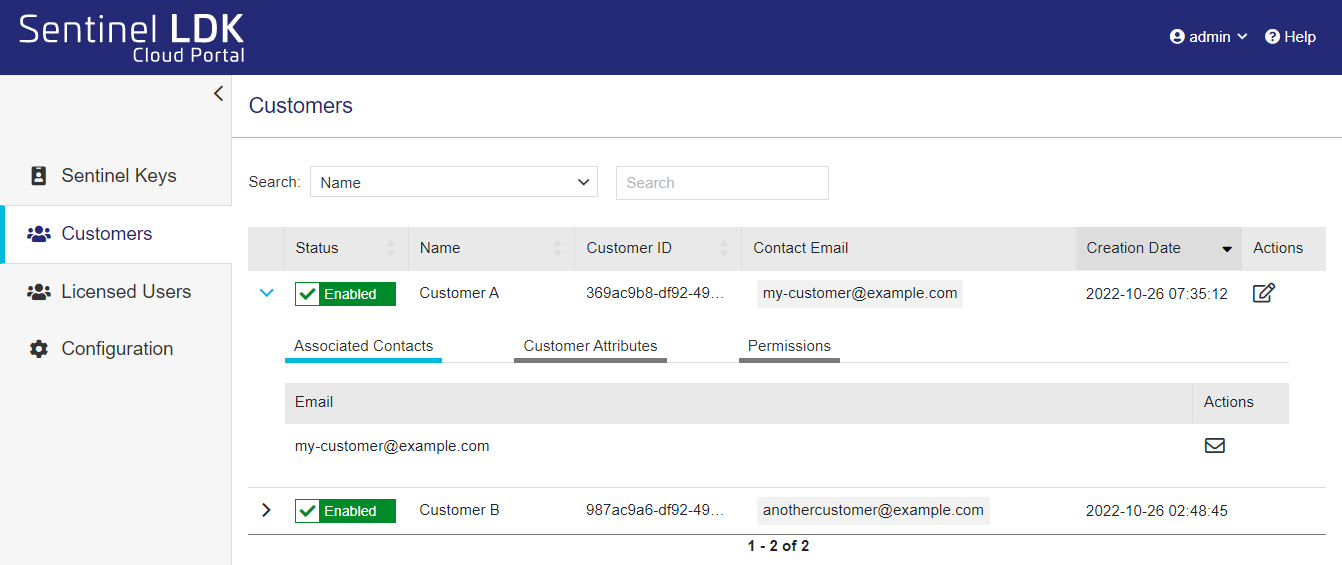
Grid Columns
The following details are displayed for each customer:
| Attribute | Description | |
|---|---|---|
| Status | The status of the customer. | |
|
Customers can log into the Sentinel LDK Cloud Portal for customers (also known as the customer portal) to view and manage their licensed users. |
||
|
Customers that are marked as disabled cannot log into the Sentinel LDK Cloud Portal for customers (also known as the customer portal). |
||
| Name | The name of the customer, as defined in Sentinel LDK-EMS. | |
| Customer ID |
The unique identifier for the customer. |
|
| Contact Email | The unique email address of the customer's contact, who may also be assigned the administrator role in the Sentinel LDK Cloud Portal for customers. | |
| Creation Date |
The date and time that the customer was added to Sentinel LDK Cloud Portal. |
|
| Actions | Edit Permissions  |
Opens a page that enables you to edit the permissions for the selected customer. Make sure to click Save to save your changes. |
Associated Contacts Tab
When you expand the record for a customer, you can view the following information.
| Attribute | Description |
|---|---|
| The email address of the contact who can optionally serve as a Sentinel LDK Cloud Portal administrator. | |
| Actions |
For each contact, you can click |
 to send a welcome email. This email message provides the contact with the credentials needed to log on to
 Customer Attributes Tab
When you expand the record for a customer and click Customer Attributes, you can view the following information.
| Attribute | Description | |
|---|---|---|
| Status | The status of the customer. | |
|
Customers can log into the Sentinel LDK Cloud Portal for customers (also known as the customer portal) to view and manage their licensed users. |
||
|
Customers that are marked as disabled cannot log into the Sentinel LDK Cloud Portal for customers (also known as the customer portal). |
||
| Name |
The name of the company or individual customer as defined in Sentinel LDK-EMS. |
|
| CRM ID |
(Available only if defined) The customer relationship management identifier. |
|
| Creation Date | The date that the customer was added to the Sentinel LDK Cloud Portal. | |
Permissions Tab
When you expand the record for a customer and click Permissions, you can view the permissions for that customer. By default, the customer inherits the permissions defined in the Configuration page. You can modify these permissions for a specific customer by clicking Edit Permissions in the Actions column.
| Field | Description |
|---|---|
| Maximum Number of Auto-Registered Machines |
An auto-registered machine is the client machine on which a licensed user has run the protected application at least once. Possible values: >1-10 (default is 5) The maximum number of remote machines that are allowed to use this identity string to access the license server machine. Each machine will be automatically registered the first time it accesses the license server machine. When the maximum number of machines are registered, no additional machines can use this identity string. >Unlimited. An unlimited number of remote machines are allowed to use the identity string to access the license server machine. The machines will not be registered. |
| Maximum Number of Licensed Users per Customer |
The maximum number of licensed users (identities) that can be defined for each customer. Possible values: >Unlimited (default) >Number of Network Seats |
| Waiting Period for Reusing Deleted or Disabled Auto-Registered Machines (Days) |
The waiting period represents the number of days that the Sentinel LDK Cloud Portal customer administrator must wait before they can change the status of a machine that they disabled or deleted using the self-service Sentinel LDK Cloud Portal for customers. This is relevant only after the first time that the registration status changes. The purpose of this setting is to discourage unauthorized license sharing by licensed users that were added by an administrator using the Sentinel LDK Cloud Portal for vendors. (This setting is not relevant for licensed users that were added using the Sentinel LDK Cloud Portal for customers.) How does the waiting period work? Suppose the Sentinel LDK Cloud Portal vendor administrator created a licensed user profile for Alex. The first time that Alex runs an application that uses a CL key, his laptop is automatically registered to his licensed user profile. Both the vendor administrator and Alex can see this registration in the Registered Machines tab under the record for Alex's profile on the Licensed User page in Sentinel LDK Cloud Portal. One day, Alex decides to give his license to his friend, Joan. Alex uses the self-service Sentinel LDK Cloud Portal for customers to delete or disable the machine where the protected application ran (his laptop). Joan, pretending to be Alex, runs the protected application from her machine. After two days, Joan tells Alex that she doesn't want to use the application anymore. So, Alex opens Sentinel LDK Cloud Portal for customers and disables or deletes the machine that was automatically registered when Joan ran the application (Joan's laptop). Since Joan is no longer using the application, Alex decides to run the application on his laptop again, but only two days have elapsed. Since the Waiting Period for Reusing Deleted or Disabled Auto-Registered Machines is set to the default seven days, Alex must now wait for five more days before he can run the application on his laptop. Possible values: >1-30 (An integer representing 1-30 days) >No waiting period. Select the Allow Immediate Reuse check box to override the waiting period and allow deleted or disabled machines to be automatically re-registered immediately. Default: 7 |
| Allow Online Connection to Licenses |
Enables a remote machine with an identity string to consume a license from the license server machine. Possible values: Yes or No |
| Allow License Detaching |
(Relevant for both automatic and on-demand detaching) Enables a client machine to detach a license (a network seat) for a protected application from the license server machine whenever a license is required. You set the length of time for detached licenses from the Sentinel Admin Control Center > Configuration > Detachable Licenses tab. >Automatic detaching. Detached licenses are deducted from the pool of available networks seats on the CL key. The client machine retains the license up to the number of hours specified even if the connection to the license server is interrupted. This enables the protected application to continue to operate without connection to the license server machine. When the detached license expires, it automatically returns to the pool of network seats on the CL key and is disabled on the machine. >On-demand detaching. You can manually detach a license from a CL key and attach it to your machine for a specified number of days. This is useful if you want to work with a protected application and expect to be disconnected from your company’s network for an extended period. You can detach a license using one of the following: •Online. You can connect from your machine to the machine where the SL key is located and detach a license. The license is immediately attached to your machine. •Offline On the machine where the SL key is located, an administrator can generate an H2R file that contains a detached license. The administrator transfers the file to the recipient. The recipient applies the H2R file on their machine. Possible values: Yes or No |
| Allow Concurrency for Detached Licenses |
(Relevant only for on-demand detaching and visible only if Allow License Detaching is set to Yes) Enables a machine with the identity string to detach one or more network seats with concurrency from the license server machine. These seats can then be accessed concurrently on the machine that receives the detached license. A detached license with concurrency can be used to: >Set up second-level license servers. These can be used to provide greater control over the distribution of network seats within an organization and to minimize the overhead of license administration. For more information, see the Sentinel LDK Software Protection and Licensing Guide. >Control the number of local hardware resources used by an application. For example, a protected application can be limited to use 4 out 8 CPUs. This requires a detached license with 4 seats, where access to each CPU is granted after the application logs in to the license. In this example, the fifth login will be denied, ensuring that only 4 CPUs are in use. Possible values: Yes or No |
Search Parameters for Customers
You can use the search bar to filter the list and show only those customers that meet the relevant search parameter. The following search parameters are available:
>CRM ID
>Contact Email
>Creation Date From
>Creation Date To
>Customer ID
>Phone
>Ref ID