
Activations
An activation refers to a method of generating a license for a product. Licenses uses machine-specific locking criteria to identify a device. This ensures that the product can be used only on the device to which it is locked.
Prerequisites for activating a product:
>The remaining quantity of the product in your entitlement must be more than zero.
>The locking code of your machine must be available when generating a locked license.
The Activations Page
NOTE Although all activation options are described below, only the relevant options for your activation are visible on your screen.
In the navigation pane, click Activations to open the Activations page.
| To learn how to: | See: |
|---|---|
| View activations or license details |
>Viewing Activations or License Details >Search Parameters for Activations |
|
Activate a product NOTE You perform these activation tasks from the Entitlements page or the Products page.
|
For the Activate button: >Activating a Product Using Standard Locking Criteria |
|
For the Activate Online button: |
|
|
For the Activate Offline button: |
|
|
For the Activate Cloud License button: >Activate Using the 'Activate Cloud License' Button (missing or bad snippet) |
|
| Activate a variant of a product | |
| View automatically activated products | |
| Activate a product without logging in to the customer portal | |
| Revoke an activation |
Viewing Activations or License Details
This section describes what you can do on the Activations page.
Viewing Activation Information
For each activation, there are several details available on the Activations page.
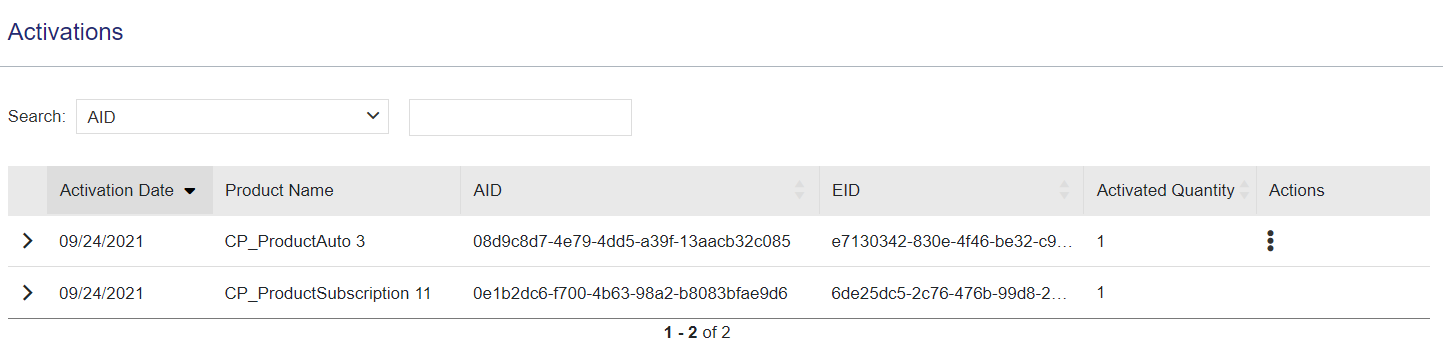
The following table explains these activation details:


Search Parameters for Activations
You can use the search bar to filter the listed activations based on the following search parameters.
>AID: Unique identifier for an activation.
>Fingerprint-Friendly Name: A friendly name for the machine fingerprint registered for the activated product.
>Locking Code: Locking information of a locked license generated for a product.
>Product Name: Name of the activated product.
>Product Bundle Name: Name of the activated product bundle.
>Product Bundle External ID: External ID of the activated product bundle.
For information on how to search, see Searching for an Entity.
Actions for an Activation
The Actions column provides additional operations that you can perform for a record in the grid on this page. Some or all of the following options may be available.
| Action | Description |
|---|---|
| View Entitlements |
Opens the entitlement for the selected activation in the Entitlements page. For details, see Entitlements. |
| View Downloads |
Opens the download details of the activated product in the Downloads page. For details, see Downloads. |
| View License Certificate | Displays the license certificate for the activation and enables you to send the license certificate details by email or save the license to a file. For details, see Viewing a License Certificate. |
| Revoke | Revokes the activation. For details, see Revoking a License. |
Viewing a License Certificate
The license certificate contains the details of the license generated for the product.
To view and email a license certificate for an activation:
1.Select an activation.
2.In the Actions column, click  (More Actions).
3.Click the View License Certificate action. The license certificate appears:
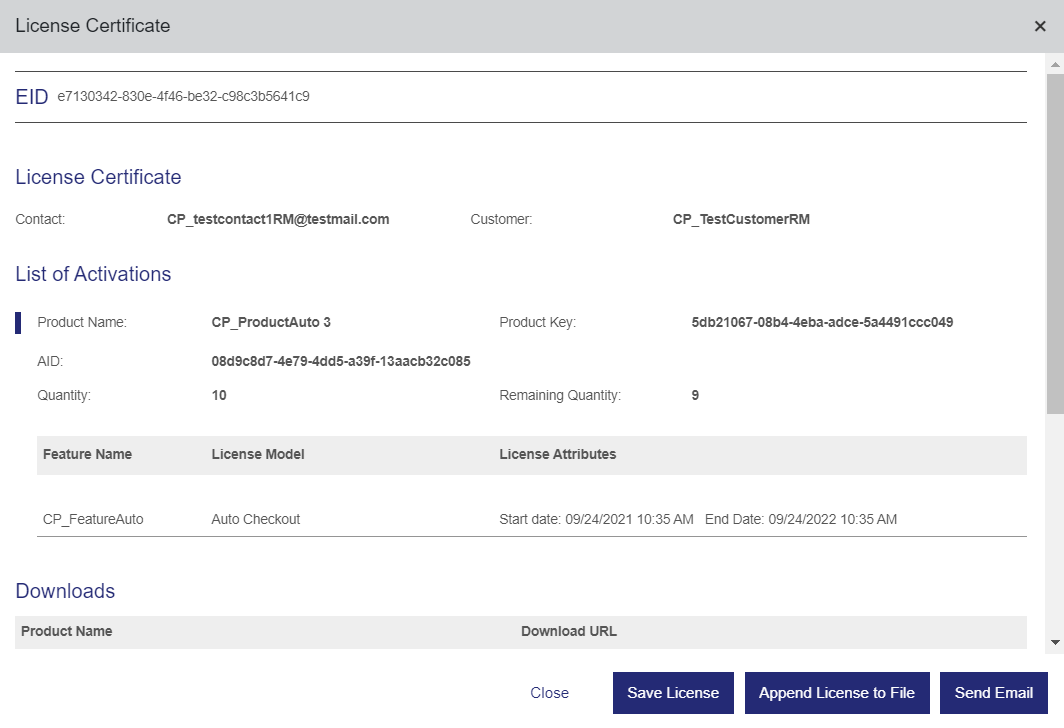
4.Click one of the following buttons to perform the given action:
•Send Email: Enables you to send the license certificate details to up to 15 email addresses (separated by commas).
•Save License: Enables you to save the license certificate as a file.
•Append License to File: Enables you to append the license certificate to an existing file.
Configuring the Columns to Display
NOTE Relevant only for vendor administrators who log in to the Sentinel EMS customer portal to perform configuration-related activities.
You can show or hide, and reorder the entity attributes that you want to display as columns on the page, and select the default grid column sorting as needed.
You can configure the column display based on the selected customer login type.
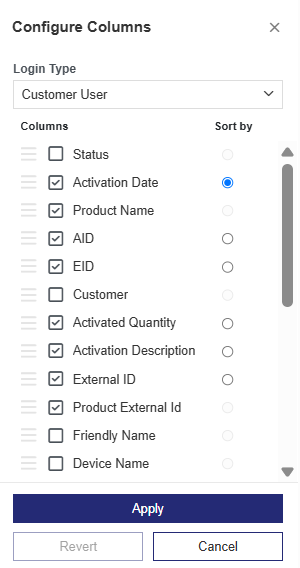
The Columns list shows all configurable entity columns. The selected checkboxes identify the columns that are currently displayed for the entity.
To configure the grid data for an entity:
1.Navigate to the Activations page.
2.Click the Configure Columns tool located next to the Actions column. The columns that can be configured for the entity are displayed.
3.Select a login type from the Login Type list. The available options are:
•EID: Log in using your entitlement ID (EID).
•PKID: Log in using your product key ID (PKID).
•Customer User (default): Log in using your customer user credentials.
•Customer Admin: Log in using your customer administrator credentials.
•Channel Partner User: Log in using your channel partner user credentials.
•Vendor Admin: Log in using your vendor administrator credentials.
4.Select the checkboxes for the columns to display. Clear the checkboxes for the columns that you want to remove from the display.
5.Under Sort by, select the radio button next to an attribute to sort the grid by that column.
6.To reorder the columns, drag and drop the relevant columns to the required locations.
7.Click Apply to save the changes. You must make at least one change to enable the Apply button. This saves the changes for all login types in a single action.
8.(Optional)The Revert button is enabled when any configuration option differs from its default setting. Click Revert to reset the column configuration to the default settings. Reverting discards all previous customizations, including changes made in earlier sessions.
9.(Optional) Click Cancel to close the page without saving your changes.
Updating and Syncing Licenses from the Login Screen
If available, you can update licenses and sync revoked license data directly from the login screen, without logging in. Both operations use the same mechanism and are performed simultaneously.
>Online: Perform these operations directly on the machine where the licensed software is installed (the target machine).
>Offline: Perform these operations from any device with internet access, using the latest C2V (Customer-to-Vendor) file from the target machine. For example, you might use this option if the machine does not have internet access or is not available. When you complete the process, a V2CP (Vendor-to-Customer Package) license file is generated. To apply the updates, you must transfer the V2CP file to the target machine and apply the license.
You might use this process when:
>You receive a license update notification email from your vendor and need to apply the latest license updates to your machine.
>You revoke a license and need to sync the revocation status with Sentinel EMS so that the license is re-credited to the entitlement. When you revoke a license, the licensed software is no longer available for use on that machine. The revocation status must still be synced with Sentinel EMS for the credit to be returned.
Updating and Syncing Online
You can use the online option to immediately apply license updates and sync revoked license data.
To update and sync online:
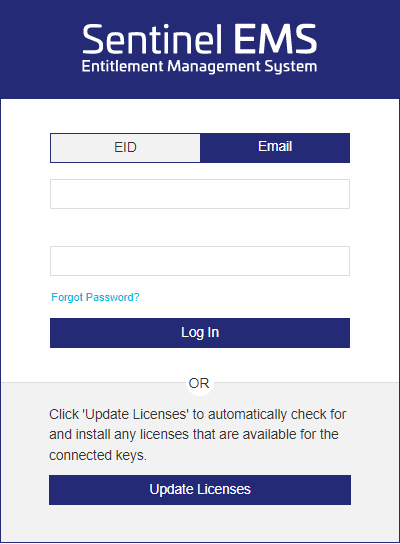
1.On the target machine, open a web browser. In the address bar, enter the Sentinel EMS customer portal URL and press Enter.
NOTE
2.In the login screen, click Update/Sync Licenses Online. Sentinel EMS automatically applies any available license updates for keys connected to the machine and syncs any pending revocation data. A key can refer to software or hardware (for example, a dongle), depending on what is installed on the machine. If there are no pending updates or revocation data to sync, a message is displayed that confirms this.
Updating and Syncing Offline
You can perform the update and sync from any device with internet access, as long as you have the latest C2V file from the target machine.
1.Generate the latest C2V file on the target machine.
2.On a device with internet access, open a web browser, enter the Sentinel EMS customer portal URL in the address bar, and press Enter.
3.In the login screen, click Begin Offline Update/Sync.
NOTE
4.In the Perform Offline Update/Sync dialog box, upload the C2V file from the target machine and click Submit.
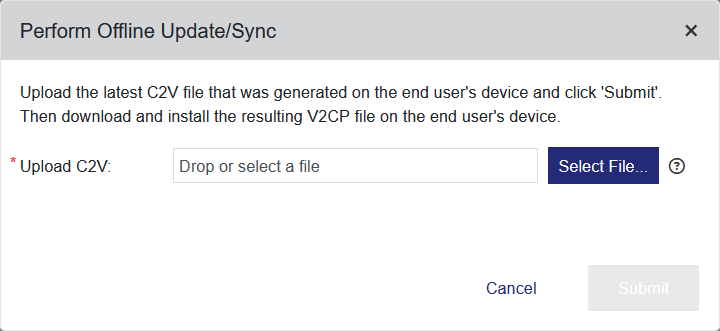
Sentinel EMS checks for pending updates or revocation data to sync.
If found, Sentinel EMS generates a V2CP file that contains the latest license data, including any available license updates and the active licenses. Sentinel EMS also syncs any pending revocation data, which immediately re-credits the revoked licenses to the entitlement. A success message is then displayed.
Otherwise, a confirmation message is displayed stating that no changes are pending.
5.(Optional) When the success message is displayed, click the Download the V2CP file link to download the latest V2CP file for installation on the target machine. When you install the V2CP file, the license data on the key is overwritten with the updated license information in the V2CP file. Alternatively, you can wait for the next software update from your vendor, which automatically includes these pending changes.
Revoking a License
If available, you can revoke an activation to return your licenses to the software vendor. When you revoke an activation, the quantity of the revoked license is immediately re-credited to the entitlement. You might want to return a license if your device is lost, stolen, or damaged.
To revoke the license for an activated product:
1.Navigate to the Activations page.
2.Select the activation that you want to revoke.
3.Under Actions, click the Revoke button. The Revoke Activation confirmation box appears.
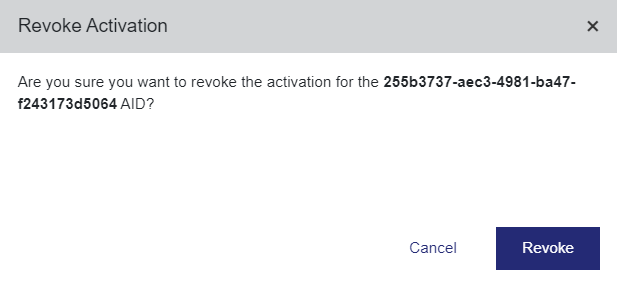
4.Click Revoke to confirm the revocation. The revoked activation is re-credited to its entitlement.