
Navigating the Portal
This section describes the Sentinel LDK-EMS portal user interface.
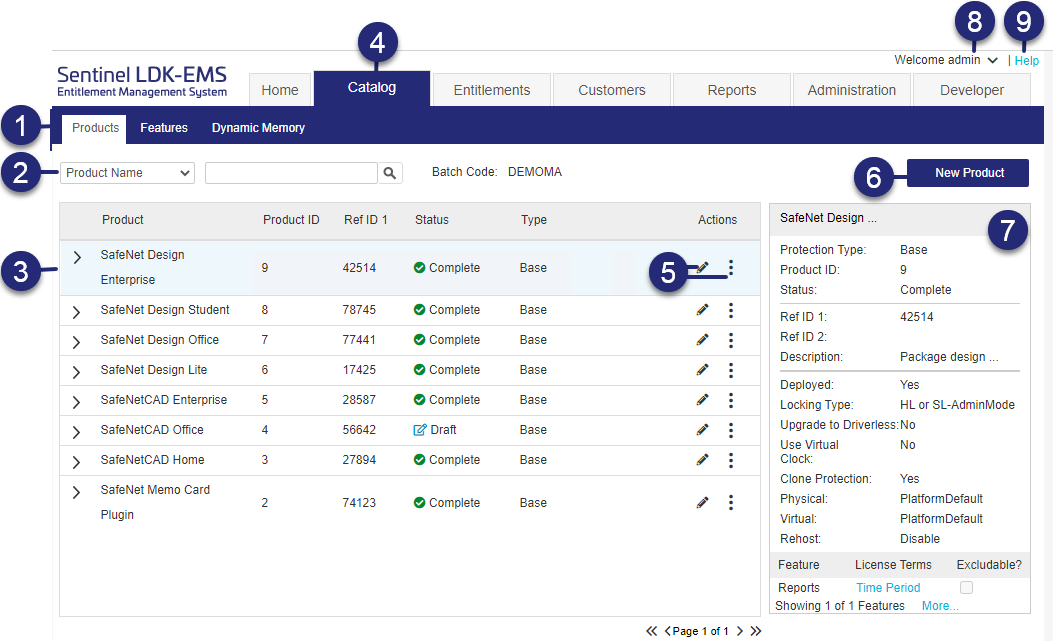
The following table describes the various parts of the Sentinel LDK-EMS portal.
| Item | Description | |
|---|---|---|

|
Sub-tabs |
Lists the available items to view and select from the various categories. |

|
Search | Filters the items that are listed in the main pane. |

|
Selected Item |
Displays the details for the item selected in the main pane. |

|
Tabs | Lists the available categories from which you can view and perform actions. |
|
|
Edit  and and Action  buttons buttons |
Lets you perform various tasks, such as edit, copy, and delete. The available actions vary depending on the assigned user role and tab displayed. |

|
New <item> button | Lets you create a new item, depending on the currently displayed tab. |

|
Details pane | Displays details for the currently selected item. |

|
User name and actions | Displays the logged on user and lets you perform various actions from the down arrow, such as logging out or changing your password. |

|
Help |
Opens detailed instructions for using each Sentinel LDK-EMS function and task in the Sentinel LDK-EMS. To access the Help on any page, click the Help link at the top-right corner. Many individual screens also contain a Help button  for information about the contents of the screen. for information about the contents of the screen. |

Main Tabs and Sub-tabs
When you click a tab, the corresponding sub-tabs are displayed. The available tabs depend on your role. For more details, see User Roles and Authorized Functions.
The following table describes what you can do from each tab.
| Tab | Enables you to: |
|---|---|
| Home |
Go to the Home Page |
| Catalog | |
| Entitlements | |
| Customers | |
| Reports | |
| Administration | |
| Developer |
>Brand the Remote Update System |